Alerts, cases, routing and escalation
Recorded October 28, 2026 in the fictional Summit Managed IT staging workspace, App 0.432.412. Fictional staging demonstration. The forms are prepared but not saved. No alert generation, ticket creation or notification delivery is demonstrated.
Video transcript
This walkthrough shows Alert Rules in Administration, General. We are using the fictional Summit Managed IT staging workspace. Alert Rules decides which events qualify for alerts; Alert Routing decides who receives notifications. We will prepare examples without saving or changing active monitoring.
The Alert engines matrix separates opening an alert from its severity, case, notification and ticket settings. Device thresholds are managed in agent policies. Select Syslog to inspect that engine. Save alert rules applies matrix changes, so review the entire set of changes before saving.
Scroll to New syslog rule. Give the rule a descriptive name and select Northwind Traders as the customer. A customer-specific rule prevents the same example from matching events from Cedar Valley Dental or Harborline Logistics. Leave the example unsaved while you review its scope.
Match severity at or below uses syslog numbers: lower numbers are more urgent. Three includes error, critical, alert and emergency events. Raise alert as selects the resulting RMM alert severity. Here we use error or more urgent events and raise them as critical.
Use host, app and message filters to narrow the match. This example looks for a Northwind firewall host, the sshd app tag and an authentication failure message. These are fictional values. Inspect real authorized sample events before choosing a production match; a full log line may vary between events.
Enabled controls whether the saved rule is active. Also open a ticket is a separate choice. We turn Enabled off in this unsaved example and leave ticket creation off. Review the scope and match before using Add rule. This recording does not submit the form or generate an alert.
New SNMP rule uses the same customer scoping. Here we prepare a Cedar Valley Dental switch CPU rule, narrow the metric to CPU, and choose a numeric threshold. A match filter alone is not a threshold: the operator and number must be supplied together, or a status keyword must be used.
We leave both forms unsaved and reopen Alert Rules to discard them. For an authorized rollout, save the reviewed rule, reopen it to check the stored values, then verify a matching event and a nonmatching event. Check any resulting alert and ticket separately. Saving configuration alone does not establish that collection or delivery works.
Video guide: Prepare customer alert notification routing
Recorded November 11, 2026 in the fictional Summit Managed IT staging workspace, App 0.432.427. Fictional staging demonstration. No route is saved, no webhook is entered and no email or notification is sent.
Video transcript
Open Administration, General, Alert Routing in the fictional Summit Managed IT staging workspace. This page chooses notification destinations for matching alerts. We will prepare a Northwind Traders route without saving it. No email or webhook delivery is attempted in this walkthrough.
The highlighted sentence states the default. Routes never replace it: every owner and administrator still gets each alert that Alert Rules set to notify, or the storm incident that groups it. Routes add recipients and webhooks for anyone else who needs to hear about an alert. Plan coverage for every customer and alert category before activating a routing setup.
Use a name that describes the customer and purpose. Select Northwind Traders as the customer. Leave Any check selected for this draft so we can focus on customer and severity. In a real setup, review the check filter together with your intended coverage.
Minimum severity offers warning plus critical, or critical only. Select critical only for this example. Notify on resolve requests a follow-up when a matching alert resolves. Check this choice with your on-call process so the team can distinguish a new problem from its recovery.
The Emails field accepts comma-separated destinations. We enter a reserved example address for this draft. The webhook field is optional; keep real webhook URLs private because they can act as credentials. We leave it blank and do not send a test notification.
Review the customer, check filter, severity, resolution setting and destinations together. Add route would save the route and change notification behavior. We do not press it here. Cedar Valley Dental and Harborline Logistics need their own planned coverage if they should receive different notifications.
Recent webhook attempts provides evidence about attempted webhook requests. Read the recorded status and time. Provider accepted describes the provider response, and does not by itself prove that a person saw the message. An empty history does not demonstrate successful delivery.
Reopen Alert Routing to discard the unsaved example. For an authorized rollout, save the reviewed route, reopen it to verify the stored configuration, and exercise both a matching and a nonmatching alert in a test environment. Confirm the intended destination receives the matching notification and verify resolution behavior separately.
Video guide: Read an alert and find the investigation workflow
Recorded October 22, 2026 in the fictional Summit Managed IT staging workspace, App 0.432.1. The deployed demo can differ from the current product; use the written guide for current behavior. No notification channel test, escalation, case mutation, remediation or later recovery sample.
Full narration captions are included in the video. Open video full screen · Download subtitles · Download transcript
Video transcript
Open Monitoring, Alerts. Read severity together with the check, customer, affected device and observation time. This fictional workspace has old offline-device evidence. A critical label does not by itself identify the root cause or prove a current incident.
Open Cases to locate the operational investigation workflow. Acknowledging an alert, adding a note and resolving the underlying condition are different actions. We do not acknowledge, close or remediate any alert in this recording.
Use the written guide for routing, escalation and verification. After an authorized fix, confirm a later health sample and the relevant check outcome, then review notification delivery separately. A queued command or disappeared row alone cannot prove a durable recovery.
What it does
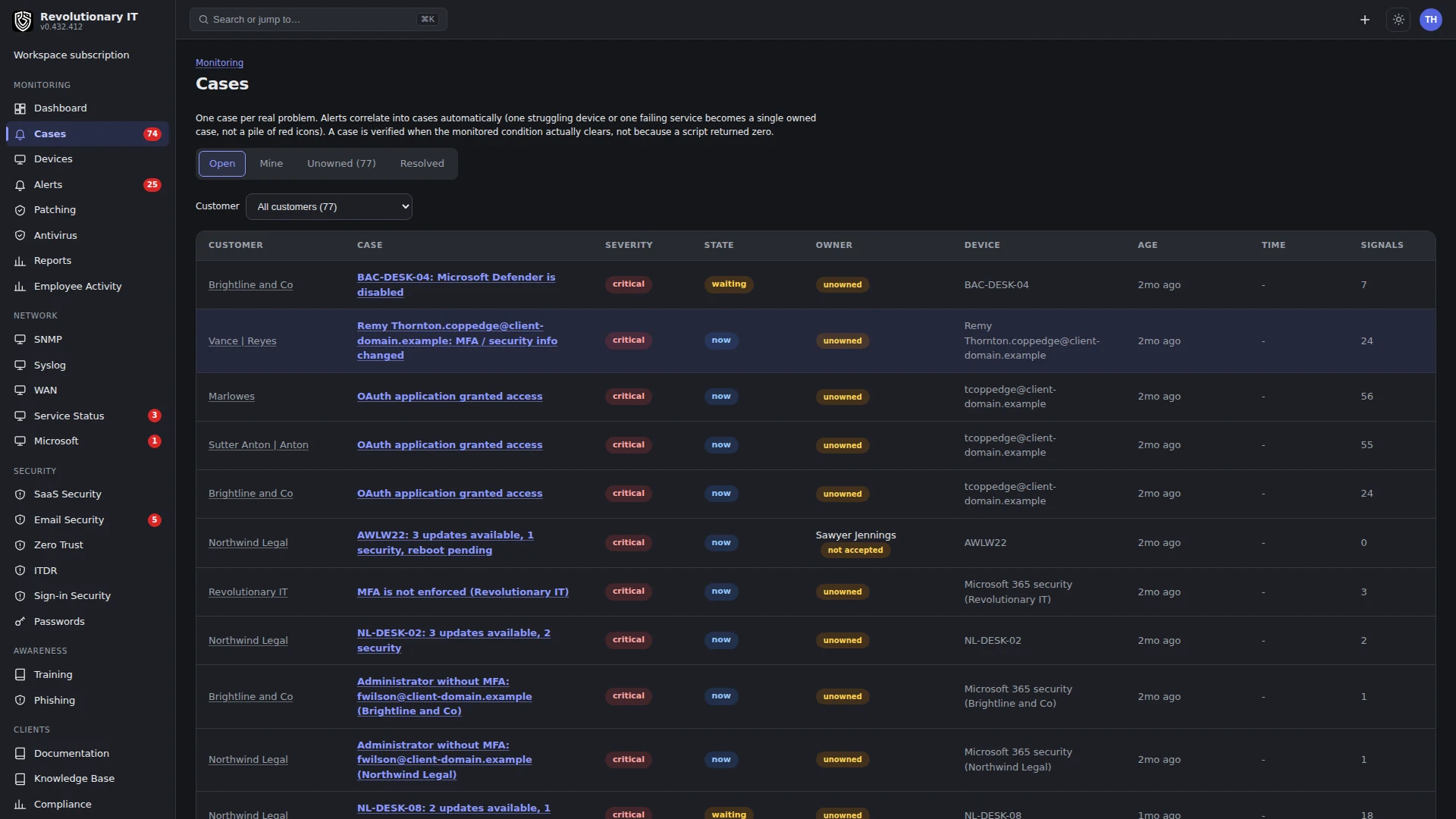
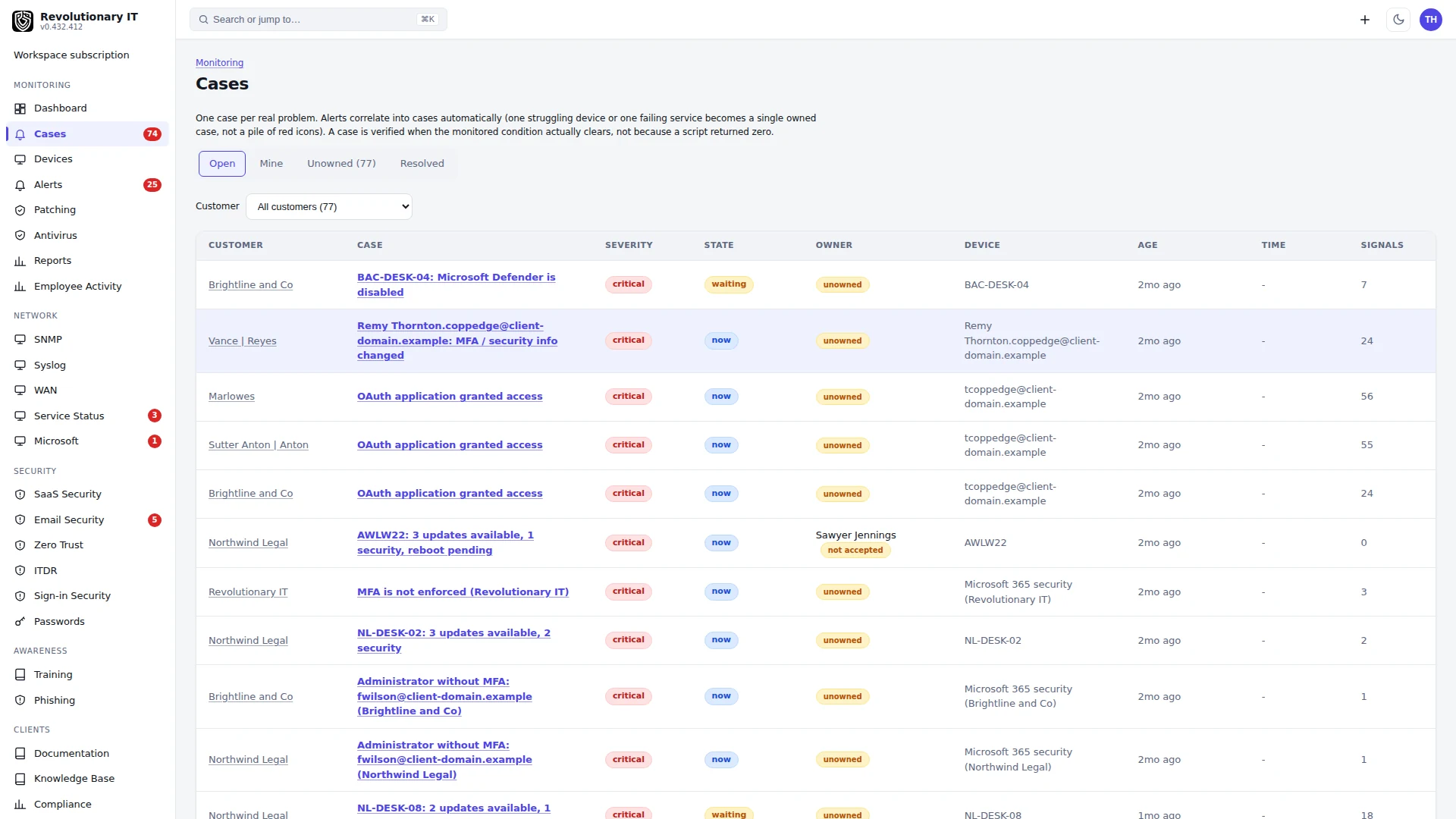
Alerts are the platform's single stream of things that need attention: device checks, SNMP thresholds, syslog rules, WAN outages, provider incidents, ITDR findings, Microsoft 365 findings, Defender and EDR detections, SaaS Security incidents and Zero Trust bursts all land in Monitoring > Alerts. Cases fold related alerts into one owned record per real problem. Alert rules, routing, subscriptions and escalation decide who hears about what.
Hold time: a check in a policy can carry a hold time in minutes. The alert opens only when the condition has lasted the whole hold time; a condition that clears sooner never becomes an alert, and the next failure starts a fresh clock. A check without a hold alerts at once.
How it works
Sources
- Device alerts carry a device and a check type and are opened and cleared by policy evaluation at check-in.
- Source alerts (SNMP, SYSLOG, WAN, CLOUD, ITDR, BILLING, M365, DEFENDER, EDR, SAAS, ZT, SECURITY, REMOTE) carry an organization, an entity label and a dedupe key; a repeat folds into the open alert instead of creating a new one. Every alert is stamped with its kind (for example
itdr:geo_out_of_bounds,snmp:node-down), the unit the alert rules are keyed on. - Every open alert has a timeline (opened, progress, acknowledged, snoozed, resolved) and can be acknowledged, snoozed, resolved, turned into a ticket, or asked about with the AI assistant.
- Self-healing: a condition that clears resolves its own alert (device checks at check-in, SNMP and WAN on recovery, ITDR when a finding closes, cloud incidents when the provider resolves them). Unexpected-reboot alerts latch until a technician resolves them.
Cases
Monitoring > Cases. When an alert opens it is correlated into a case: a device's open case absorbs every new alert on that device; a device-less alert correlates by organization and entity. A case has an owner, a state (Now, Next, Waiting, Escalated), a priority, a timeline with notes and images, linked tickets, time entries, file attachments and remote sessions. Automatic resolution waits for all linked alerts to clear and for any pending reboot. Verification then awaits a later observation: a later healthy check confirms it, recurrence can reopen it, and no confirming observation within 24 hours leaves it unconfirmed. Manual resolution is recorded separately and is not a verified recovery.
Alerts excluded from cases by default: provider incidents (CLOUD), device reboots, and failed sign-in attempts. These defaults reduce case noise; review them against your team's response process. The Case switch on Alert Rules can change that per kind.
Noise rules
- Repeated failed sign-ins and slow password sprays are recorded as attack pressure on Security > ITDR and do not alert under the default rules. Successful sign-ins that break a configured rule can alert; review workspace overrides.
- A reboot only alerts when the device's own System log says it was unexpected (Kernel-Power 41, EventLog 6008, BugCheck 1001); a restart somebody asked for is not an alert.
- The alerts sweep retires alerts and cases the rules above would have prevented, so a workspace cleans itself up after an upgrade.
The alerts sweep
A background sweep performs work that cannot happen at check-in: opening Device Down alerts for devices that went quiet, evaluating scripted-monitor results, correlating incidents (the same check open on many devices of one customer becomes one incident), escalation steps, notice digests, closing abandoned remote sessions, attributing session time to tickets, and the noise clean-up. It is normally scheduled every five minutes. If offline alerts or escalations stop updating across the workspace, report the affected scope and times to support.
Step by step: alert rules for every engine (Administration > General > Alert Rules)
The Alert engines matrix at the top of the page is the one place that decides what every kind of alert does. One tab per engine: device alerts, syslog, SNMP, WAN, service status, ITDR, Microsoft 365, Defender, EDR, SaaS Security, Zero Trust, sign-in security, remote control. One row per kind of alert with five switches:
- Alert: off means the kind never opens an alert; anything already open for it is retired by the background alerts sweep described above.
- Severity: the engine's own choice (for device alerts, the policy's), or a Warning or Critical override.
- Case: whether the alert correlates into an Operational Case.
- Notify: whether it emails the matching alert routes and subscribers (every owner and administrator when none exist).
- Ticket: whether it opens a help-desk ticket automatically, resolved when the alert clears.
Administration > General > Alert Rules holds the rules for SNMP and syslog sources: each rule names its client scope, what to match (host, message, metric or status value) and the severity to raise the alert as. Device checks come from policies, and an open alert moves through acknowledged, resolved and reopened states on the Alerts page.
Rows that differ from the default carry a marker, each tab shows how many it changed, one Save covers every tab, and Reset all restores the catalog. The defaults encode the noise decisions: repeated failed sign-ins and slow password sprays are off, provider incidents and device reboots never open a case, service status never notifies. Device rows keep their thresholds on the agent policies and add the fan-out switches plus a kill switch; the policy's own alert-to-ticket flag and the row's Ticket switch both open tickets.
Below the matrix, syslog rules decide what a log line must look like to raise a syslog alert: facility, severity (0 emergency through 7 debug), host, program or message pattern, per organization, with the alert severity to open and the rule's own Notify and Also open a ticket flags, which narrow the syslog row of the matrix.
Step by step: routing and subscriptions (Administration > General > Alert Routing)
- Each technician sets a personal alert subscription on their account's Alert Notifications page: one customer or all customers, a minimum severity, immediate or digest delivery, and quiet hours. Administration > General > Alert Routing holds shared routes (customer, check, minimum severity, emails, webhook).
- Watched devices bypass the minimum severity floor.
- Storm control: when the same check fails on many devices of one customer, the alerts are grouped into one incident and only the incident sends a notification.
Administration > General > Alert Routing sends alerts to destinations by client, check and severity (for example critical only). The page lists recent webhook attempts with their outcome, so a route that stopped delivering is visible without waiting for a missed alert.
Step by step: escalation and on-call (Administration > General > Escalation & On-call)
- Define an on-call rotation (who is on call when).
- Define escalation steps: after N minutes unacknowledged, notify the next person or group. The sweep advances the steps.
Step by step: notification channels (Administration > Apps > Notification Channels)
Email is built in; this page holds the outbound notification rules for customer lifecycle mail (new ticket receipts, updates) and the seed button that installs sensible defaults.
Day to day
- Acknowledge an alert to stop escalation; snooze it to silence it for a period; resolve it when handled.
- Ticket from an alert: the alert page has a Ticket section; the ticket auto-resolves if the alert self-heals.
- Investigate with AI: the Ask AI panel on an alert builds a context from the device's metrics, recent commands and syslog and answers questions; the answers are logged under Administration > Logs > AI Activity.
Verification
- Stop a watched service on a test device: an alert opens on its next check-in, a case is created, the subscription email arrives; start it again and both resolve.
Troubleshooting
- No email for an alert: check the subscription's severity floor and quiet hours, the workspace mailbox (Email, branding and workspace settings) and Administration > Logs > System Email.
- Duplicate alerts for one condition: source alerts dedupe on their key; device alerts dedupe per device and check. Two different rules matching the same syslog line are two alerts by design.
- Offline alerts never open: check the effective offline threshold and maintenance window. If multiple devices are affected, ask support to check background processing.