

Patch management
Patch management for MSP fleets
Updates on purpose, not on faith. See every missing operating-system update across your customers, decide what deploys and what stays excluded, and follow each rollout device by device until the next scan confirms it.
Inside Revolutionary RMMPatching
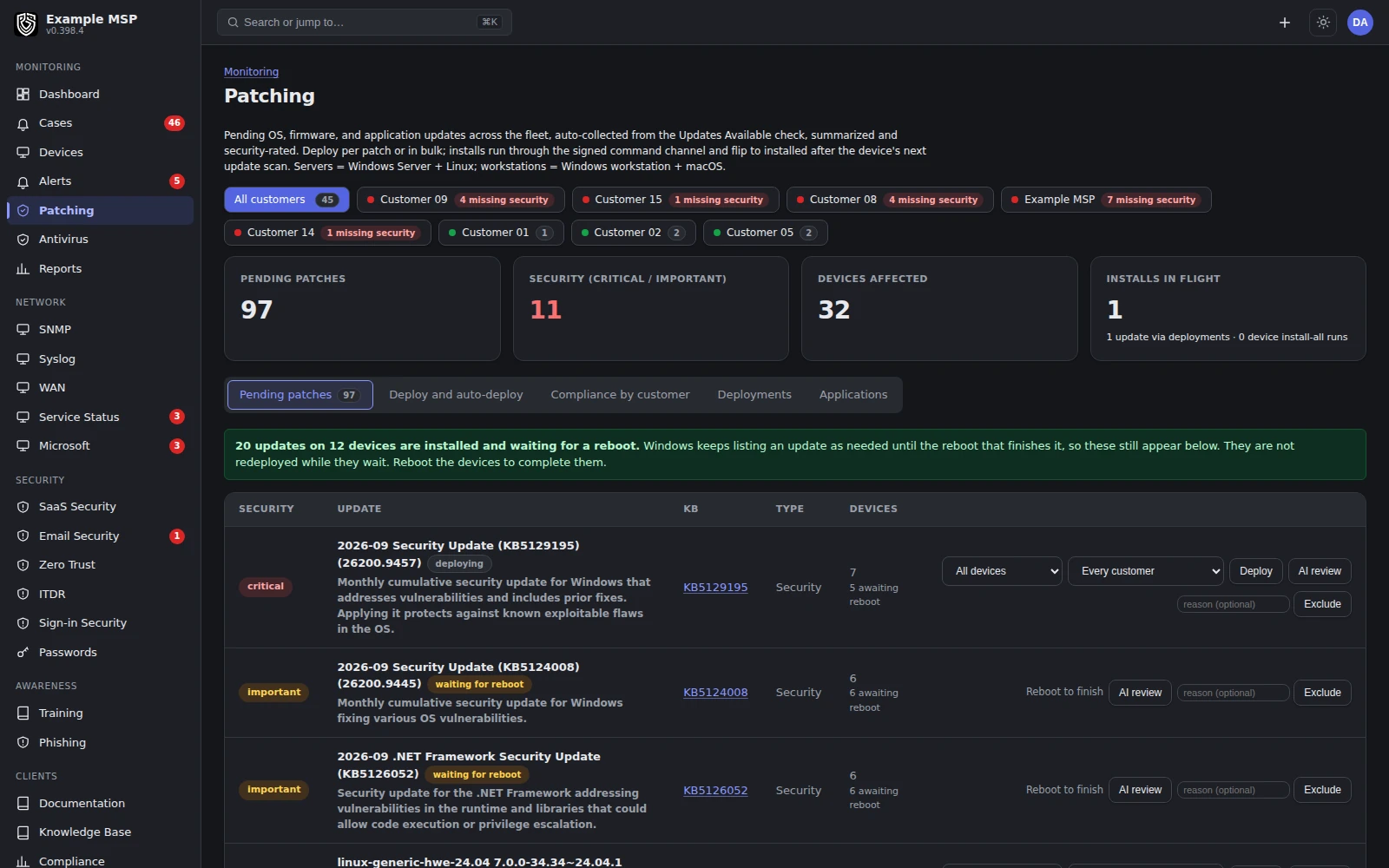
Pending updates across every customer. Installed updates that still need a restart are marked waiting for reboot and are not deployed again. Product capture with fictional customer names.
What it does
As granular as you need it to be.
01
Per patch, per device
Tick individual updates on one machine and install just those, or deploy a patch across a customer in one action.
02
Exclusions win
Exclude an update and it stays excluded, even when an automatic rule would otherwise deploy it.
03
Auto-deploy after N days
Set a waiting period for pending critical and important security updates before they deploy automatically.
04
A live progress board
Each deployment shows installed, installing, waiting, failed, timed out and expired counts per device.
05
Retry what really failed
A deployment retries devices that genuinely failed, once within a day, and leaves offline devices to catch up.
06
Reboots on your terms
Devices that need a restart are flagged, and the restart is an action you take, not a surprise for the user.
How it works
From a missing update to a confirmed install.
Windows keeps listing an update as needed until the reboot that finishes it. Revolutionary RMM tracks that state instead of reinstalling.
01
1. The scan finds what is missing
The agent reports missing updates from the operating system's own update catalog, with security severity attached. Offline devices are picked up on their next scan.
02
2. Your rules decide what deploys
Auto-deploy rules and exclusions are set per customer. A deployment can target a customer, a location, a device group or a list of specific devices.
03
3. The install runs and reports
Installs run through the signed command channel. A command for a machine that is switched off waits for it, and expires if the device stays offline too long.
04
4. Waiting for reboot is its own state
An update that installed but needs a restart is marked waiting for reboot. Nothing deploys it again in the meantime, and the Patching list offers Reboot to finish instead of Deploy.
05
5. The next scan confirms it
After the restart, the update either disappears and closes as installed, or it is still offered, which means the install did not take, and the row re-arms for another try.
Inside Revolutionary RMMDevice patching
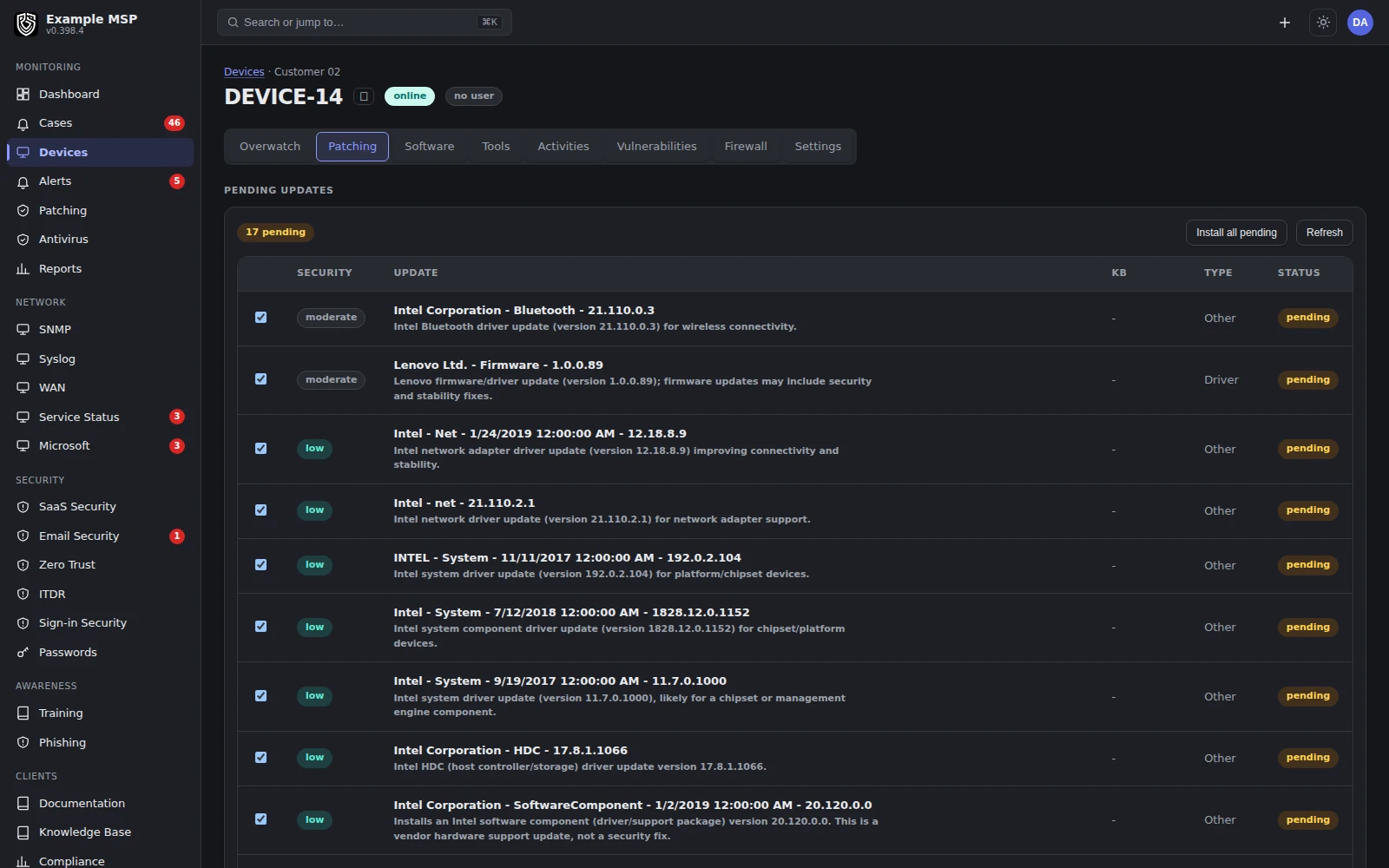
One device's pending updates. Tick the ones you want, or install everything pending. Product capture with fictional customer names.
The detail
Review, retries and software you install.
Review
AI review before it ships
Ask for a review of a patch and the platform researches it on the open web, then returns a verdict with the sources it read. AI can also re-rate severity after reading published advisories. It runs on your workspace's own AI key.
Retries
Stops after three misses
When three installs in a row run and the update still does not take, the auto-deploy rule stops trying it on that device and the Patching page names it. Deploying by hand is never blocked.
Offline
Switched-off machines
A command waits for the device. If it stays offline past the command lifetime, the deployment records it as expired, and the patch re-arms so the next scan picks it up.
Software
Installers you upload
Upload an MSI or EXE to the automation library once, attach it to a policy scoped to a customer or location, and it installs silently. Job state shows on the device Software tab.
Inventory
What is on the machine
The agent reports the full installed-software inventory, so the Software tab shows what is there now beside the log of what changed.
Big installs
Install all pending
Install all pending runs through the device's patch runner, so a long cumulative update is not cut off partway through.
Limits
What it does not do yet.
Limits
- Missing-update detection covers operating-system updates only. There is no third-party application patch catalog yet; applications are deployed as installers you upload.
- There is no approval workflow. You control rollout with deploy, exclude and auto-deploy after N days.
- A single-patch deploy runs as a command with a 15-minute window. Only Install all pending uses the longer-running patch runner.
- AI review needs your workspace's own AI key, and it advises. It does not deploy or exclude anything by itself.
Not in the product today: verified third-party application updates, and patch policy preview and rollback.
Questions
Good to know.
Yes. Auto-deploy rules and exclusions are set per customer, and deployments can target a customer, a location, a device group or a list of specific devices. There is no separate approval step: an update deploys when you deploy it or when its auto-deploy waiting period ends, unless it is excluded.
Windows reports an update as needed until the reboot that finishes it. Revolutionary RMM marks it waiting for reboot and does not deploy it again. The next scan after the restart confirms whether it took.
The command waits for it. If the device stays offline past the command lifetime, the deployment records it as expired, and the patch re-arms so the next scan picks it up again.
Not from a catalog yet. Applications are handled through the automation library: upload the installer, attach it to a policy, and it deploys silently. Missing-update detection covers the operating system update catalog.
Install all pending routes the work through the device's patch runner instead of a short-lived command, so a long cumulative update is not cut off partway through.
Keep exploring
Limits, checked daily
Not in the product today.
Each line below is a gap recorded against this capability in the product's own feature record. A line leaves this page by itself on the next daily run once that record says the gap is closed, so the list cannot fall behind what we ship. The rest of this page is written by hand.
- Staged rollout rings with their own deferral are not built yet, so the order is yours to set with auto-deploy rules, exclusions and maintenance windows.
- Removing an update that caused a problem is a manual step, and a failed install is retried rather than rolled back.
- There is no prompt that lets the person at the device postpone a restart, so the device shows as waiting for a reboot and a technician starts it.
- Agent updates reach the whole fleet at once, so they cannot be held back or staged for one customer.
Next step
See a patch cycle end to end.
Half an hour on a call. We will walk through a real rollout, from the scan to the reboot to the confirming scan.
