

Remote control
Remote control for Windows, macOS and Linux
Be there from anywhere. Your technicians connect through a native controller app, reach a Windows machine even at its sign-in screen, move files both ways, and the session time lands on the ticket without re-entry.
Inside Revolutionary RMMDevices
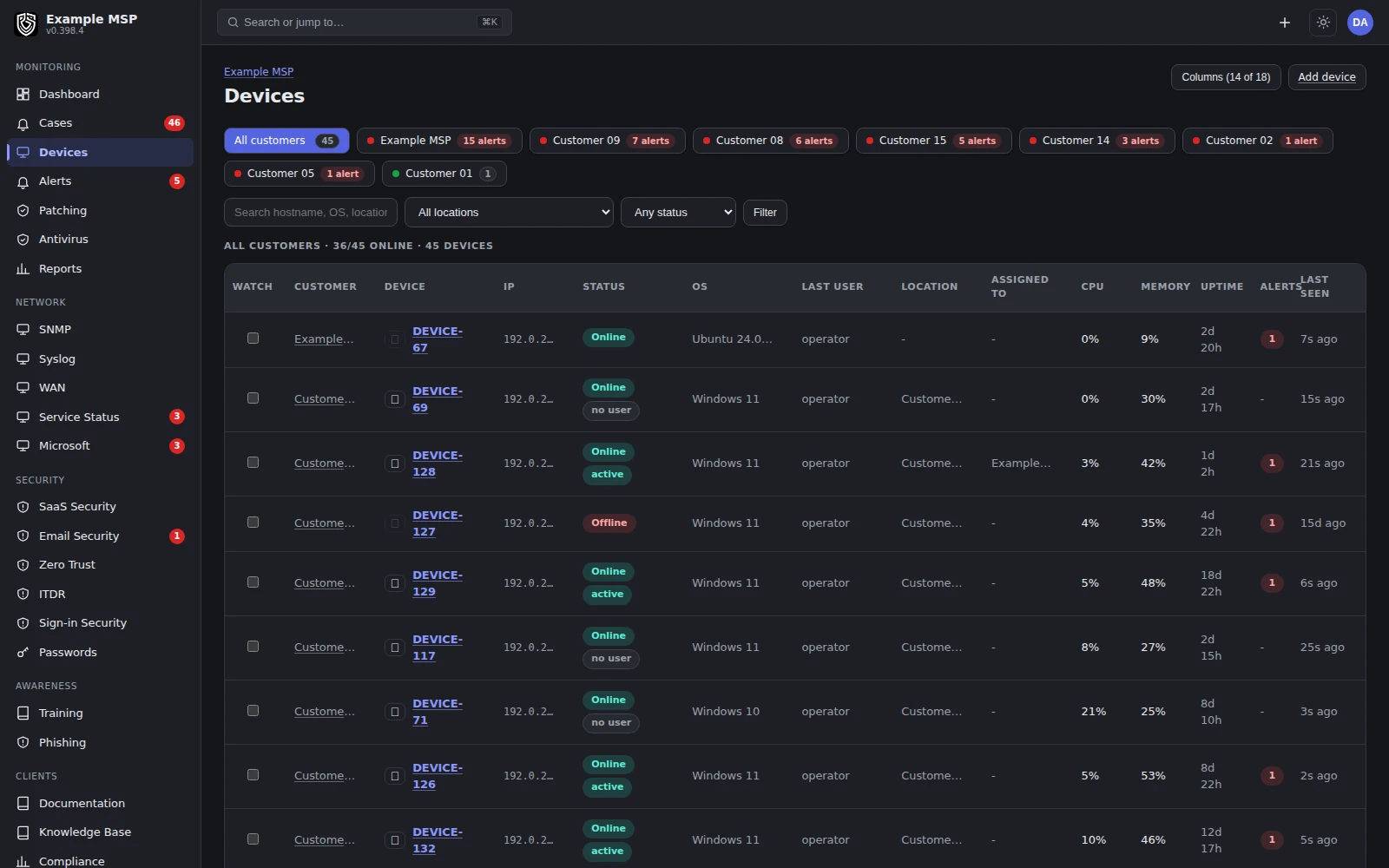
The device list, with online status, the signed-in user and whether they are active, so you know who is at the machine before you connect. Product capture with fictional customer names.
In the session
The controls you reach for.
01
The sign-in screen counts
A Windows machine sitting at the sign-in prompt is still reachable, which is often when you need it most.
02
Files both ways
Browse the user's profile or the drive list, pull files back to your desktop, and drag files onto the window to upload them.
03
Paste and type through
Send your clipboard as real keystrokes. It works on the sign-in screen and anywhere clipboard sharing cannot reach.
04
Blank the screen
Blank the remote display and block local input while you work. Both are released automatically when the session ends.
05
The awkward shortcuts
Ctrl+Alt+Delete, Task Manager, the Start menu, lock the screen, pick a monitor, and save a screenshot to your desktop.
06
Time on the ticket
When a session ends, its measured time goes to the ticket it was launched from, or to the device's open ticket.
How it connects
Authenticated at every hop.
A session passes through a relay. Both sides prove who they are before any video moves.
01
1. You start the session
The technician launches the session from Revolutionary RMM, and the native controller opens on their computer.
02
2. The agent checks the request
The command that starts the session is signed, and the agent checks the signature before it acts.
03
3. The relay checks both sides
The controller presents a signed ticket to the relay, and the agent authenticates to the same relay. Relay traffic is authenticated with a keyed hash.
04
4. The user is told
On Windows workstations, the user sees a prompt that names the technician asking. If nobody answers within 15 seconds the session proceeds. Servers do not prompt. On a Mac, the signed-in user is asked to allow the session.
05
5. The outcome is recorded
A controller that connects but never receives video opens an alert instead of failing quietly. The session records its measured duration, which feeds the ticket and billing.
Platform support
What each desktop can do.
Windows
Full desktop and sign-in screen
The capture helper runs in the console session, so a locked or signed-out machine is still reachable, and you can type credentials through as keystrokes.
macOS
Full desktop
Intel and Apple silicon. macOS asks once for the Screen Recording permission, and the signed-in user is asked to allow each session.
Linux, X11
Full desktop
Capture and input on the signed-in user's desktop session.
Linux, Wayland
Full desktop, with consent
Uses the desktop portal and PipeWire. Depending on the desktop, the user may be asked to approve each connection.
Limits
What it does not do yet.
Limits
- There is no browser-based viewer. Remote control runs through a native controller app that each technician installs, which is what makes sign-in screen access and file transfer work.
- Reaching the macOS login window has not been validated, so we do not offer it. On a Mac you connect to the signed-in desktop.
- Wayland sessions can need the user's approval for every connection.
- We do not claim that a session carries on through a user sign-out.
Not in the product today: technician apps for phones.
Questions
Good to know.
It depends on the platform. On Windows workstations the user sees a prompt naming the technician, and the session proceeds if nobody answers within 15 seconds. Windows servers do not prompt. On a Mac, the signed-in user is asked to allow the session. On Wayland, the desktop may ask for approval on each connection.
On Windows, yes. The capture helper runs in the console session, so the sign-in screen is reachable and you can paste credentials through as keystrokes. On macOS and Linux you connect to a signed-in desktop.
A Files panel in the controller browses the remote machine. Dragging files onto the window uploads them to the user's desktop, and downloads are saved to your own desktop.
No. Sessions run through the native controller app, which is what makes sign-in screen access and file transfer work.
Each session records a measured duration. When it ends, the time is attributed to the ticket it was launched from, or to the device's open ticket, so remote work is logged without re-entry.
Keep exploring
Limits, checked daily
Not in the product today.
Each line below is a gap recorded against this capability in the product's own feature record. A line leaves this page by itself on the next daily run once that record says the gap is closed, so the list cannot fall behind what we ship. The rest of this page is written by hand.
- A session needs the agent installed, so there is no one-time code that connects to a machine with no agent on it.
- Sessions are not recorded; a consent prompt, an on-screen banner and session chat are what the person at the device sees.
- Stored credentials are not typed into a remote session for you, so a technician still enters them by hand.
- Remote access runs through our own controller and relay; connecting instead by remote desktop or a secure shell tunnel, or forwarding a port to reach a web console on that network, is not offered.
Next step
Connect to a machine on the call.
Half an hour. We will open a session on a test device and show you the sign-in screen, file transfer and the time landing on a ticket.
