Remote control (Take Control)
Video guide: Find remote-control prerequisites and session evidence
Recorded October 22, 2026 in the fictional Summit Managed IT staging workspace, App 0.432.1. The deployed demo can differ from the current product; use the written guide for current behavior. Offline device and controller navigation; no live desktop session, input or file transfer.
Full narration captions are included in the video. Open video full screen · Download subtitles · Download transcript
Video transcript
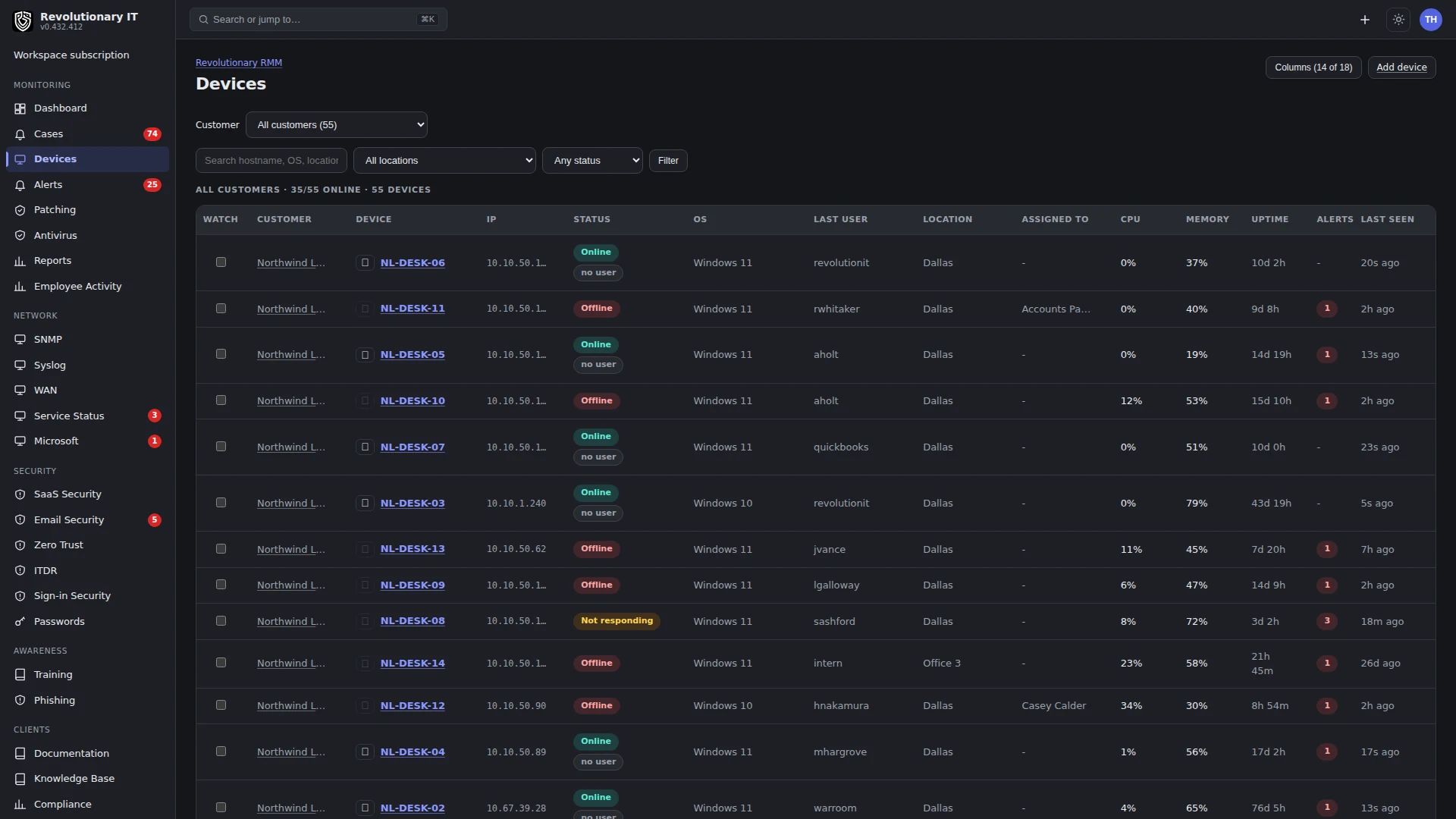
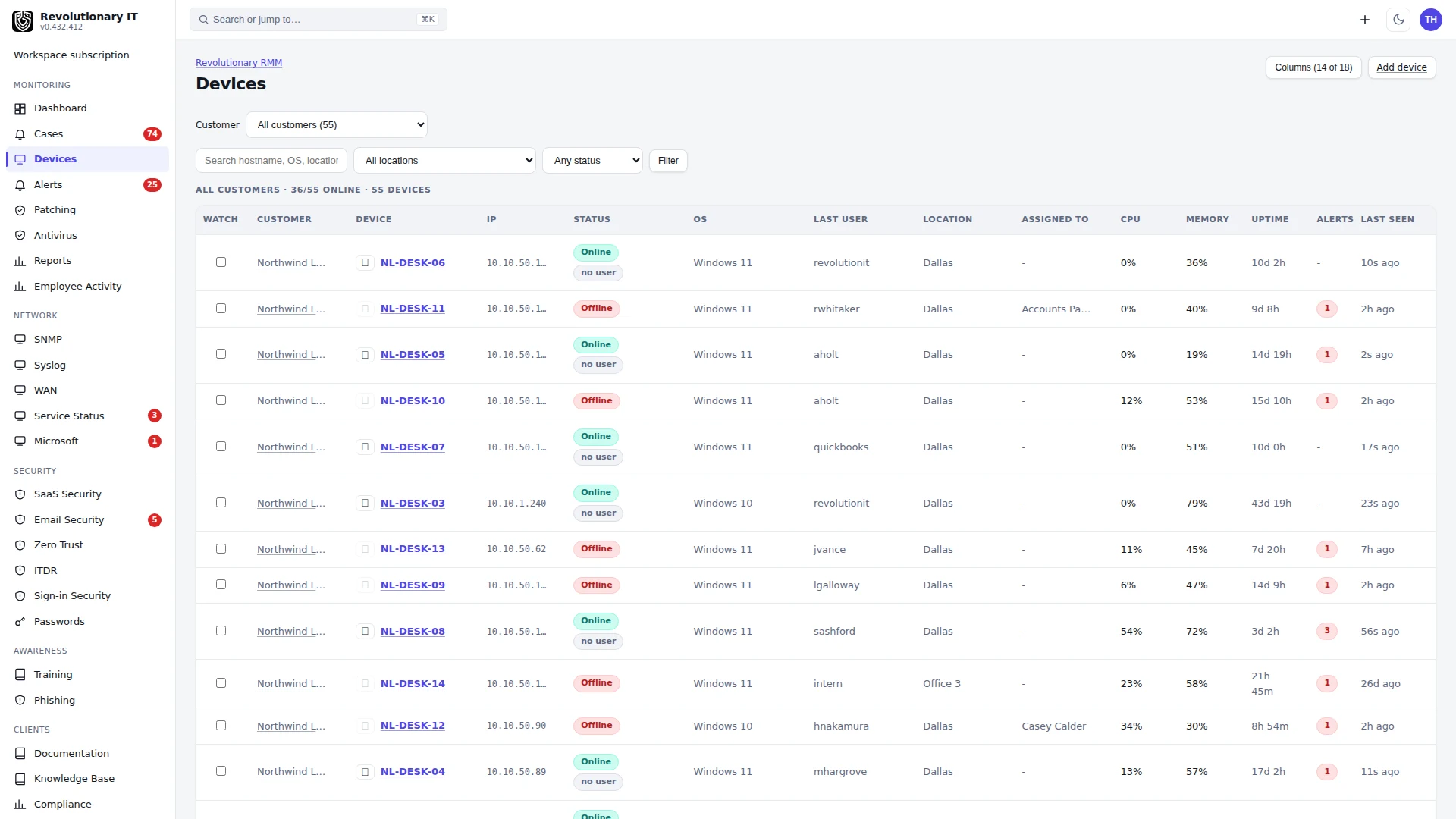
Open the intended device and read its online state and last-seen time. This Northwind demo endpoint is offline. We cannot demonstrate a live remote session from this record. Confirm permission for the intended device before starting a real connection.
Take control in the device header starts a session; the native controller is in Administration, Library, Downloads. The controller must be installed on the technician computer and the endpoint needs the platform-specific capture permissions. A browser page alone is not the remote desktop.
After an authorized live session, confirm visible frames, the intended display and input, then close the controller. Check the Audit Log and the appropriate ticket time record for session accounting. These are session records, not a recording of the remote desktop. No live session was started in this walkthrough.
What it does
Take Control gives a technician screen, keyboard and mouse access to a supported online device. Windows service/helper builds can reach the login screen and secure desktop; macOS and Linux require the applicable permissions and desktop session, and Wayland can require user consent. It also carries file transfer, clipboard, screen blanking, input blocking and a toolbar of common actions. Session start/end and duration are logged and can be billed; this is session accounting, not video recording.
How it works
- Controller: a native application on the technician's machine (Windows, macOS, Linux builds are served from the workspace's Downloads page). Take Control on a device page launches it through the
rmmcontrol://link with a signed viewer ticket. - Relay: the relay service brokers the WebSocket session between the controller and the device's capture helper. The relay validates short-lived session tickets. When the device side drops (sign out, switch user), the relay holds the viewer open for a grace window and replays the capability handshake to the helper that rejoins, so the stream resumes on its own; the controller shows a Reconnecting banner meanwhile.
- Agent: on Windows the service launches a capture helper into the console session as SYSTEM, so the login screen and UAC prompts are captured; on macOS it uses CoreGraphics (Screen Recording permission required); on Linux X11 or, through the desktop portal, Wayland with a consent prompt. Video is H.264 where available with a tile codec fallback.
- Session records: every session is stored with the technician, device, start and end, measured duration (reported by the relay on disconnect) and can be applied to a ticket as time. Abandoned sessions are closed by the alerts sweep at their last heartbeat.
- Failure alerts: a viewer that connected but received almost no frames opens a REMOTE alert on the device so a dead capture path is visible.
The controller is our own native application rather than a bundled RustDesk, VNC or browser viewer: downloads serve only the sealed, signed build, a controller older than the version your workspace serves stops before connecting, and every session is minted for one authorised person and one device.
Step by step: install the controller
- Administration > Library > Downloads (also linked from the device connection launcher). Download the controller for your platform and run it; it self-installs and registers the
rmmcontrol://handler. - Current native builds check the workspace version before connecting. Windows builds can download and verify the newer controller and launch the updater; failed verification refuses execution. Other platforms can require a manual download and relaunch. A version reported by an earlier session is diagnostic history; the native controller performs the current check.
Step by step: connect
- Device page > the Take Control button in the header. The launcher shows the controller version, the latest served version, and a download button.
- The controller opens; the toolbar offers monitors, quality, Ctrl+Alt+Del, Block input (Windows), Blank screen, Paste (types the technician's clipboard as keystrokes, works on the login screen), Actions (lock, Task Manager, Start menu, save screenshot), Files (browse the console user's profile, download to your desktop, drag files in to upload), and Display selection.
- Close the window to end the session. The duration is recorded and, when the session was launched from a ticket or the device has exactly one open ticket, logged onto that ticket automatically.
Take control opens a native remote desktop session through our own relay, so it works behind NAT without opening ports on either side. Each session is minted for one device and one signed-in person, is refused for a device outside your organization or for an account without the remote control permission, is recorded in the audit log, and ends when the controller stops proving it is alive. Files, a shell, processes, services and event logs are on the device page's Tools tab, so most fixes never need a desktop session.
Step by step: end-user remote access
Allow remote control must be enabled for the account. A CLIENT_ADMIN with this permission can control every device in their customer organization. CLIENT_USER and CLIENT_GUEST need explicit device grants and can control those granted devices only. Do not use the grant list to try to restrict a CLIENT_ADMIN; choose the appropriate role and permission instead.
Step by step: session billing
Administration > Billing > Settings: minimum minutes per session and a session cap (maximum minutes per session). A reconnect within 15 minutes always joins the same session. Sessions surface on the running tab and in time tracking (billing guidance from support).
Verification
- A session on a test device shows frames within a few seconds and appears under the device's Activities and the ticket's Time card.
- Check the intended display, input and session-duration record. Capture or reconnect support depends on the installed agent and controller build.
Files can be sent to and fetched from the device during a session. Each transfer is bound to that device and direction, downloads are available only to the signed-in technician with scope for the device, and nothing is served to an unauthenticated request.
Update check before connecting
An out-of-date Remote Access app stops before connecting. On Windows it asks once, with OK or Cancel, to download and launch the matching installer; on macOS and Linux it declines the session until the app is updated. If the workspace cannot be reached for the version check, the connection attempt goes ahead. Take Control links opened from Chrome and Edge launch the installed app.
Troubleshooting
- Connects, no frames: on Windows 11 with Smart App Control the unsigned helper is blocked (your agent installation guidance); on macOS Screen Recording is not granted; on Linux the helper needs a display and, on Wayland, portal consent.
- Stuck at connecting: the controller never reached the relay (firewall to the relay's public host and port), or the ticket expired; relaunch.
- Session drops every few seconds: check the device's network and report the session time and affected device to support; a device with a flapping link reconnects through the grace window but a dead link does not.
- Copy and paste does not work: use the Paste toolbar button (it types the text) or the clipboard mirror once the agent is current.