ITDR: identity threat detection and response
Video guide: Inspect identity monitoring and response evidence
Recorded October 22, 2026 in the fictional Summit Managed IT staging workspace, App 0.432.1. The deployed demo can differ from the current product; use the written guide for current behavior. No live sign-in ingestion, account containment or recovery test.
Full narration captions are included in the video. Open video full screen · Download subtitles · Download transcript
Video transcript
Open ITDR for identity monitoring. Review customer scope and the age and coverage of collected sign-in evidence. This is a fictional training workspace. No identity provider is connected or queried by this recording, and an empty result is not evidence of a safe tenant.
Open identity-source Alerts to see where eligible findings are triaged. An alert is a recorded finding, not proof that containment ran. Investigate the actual sign-in context and provider support before deciding on a response.
Use the written guide to verify Microsoft or Google setup, expected signals and provider-specific containment limits. Test only an authorized benign scenario. Reconcile partial actions and recovery in the provider; do not report a whole account contained from a single queued operation.
What it does
ITDR watches every connected Microsoft 365 and Google Workspace tenant for sign-ins and directory changes that indicate a compromised identity, raises alerts for the ones that matter, and can attempt containment automatically or on demand: provider block/revoke, local RMM-user access changes, ticket and email steps. These are separate outcomes, not an all-or-nothing guarantee.
How it works
- Sources: Microsoft Graph sign-in and audit logs (or the Office 365 unified audit log on tenants without Entra ID P1), and Google Workspace admin reports through a service account with domain-wide delegation impersonating a super admin.
- Cadence: the ITDR watch runs every minute (the per-workspace Scan every setting decides how often it actually runs, 1 to 60 minutes) and covers the fast checks; the hourly scan covers everything, including the Microsoft collectors of guide 15.
- Google audit feeds follow the Reports API
nextPageToken, with a six-hour overlap from the last complete scan (the first scan looks back 30 days). If a source cannot be read or exceeds the 10,000-event per-feed page cap, the scan reports partial coverage and keeps the previous complete-scan checkpoint for retry. See Google's Activities list API. - Findings that alert (successful sign-in shapes): sign-in outside the allowed region (geo-fence by country and state, Microsoft only, Google logs carry no country), sign-in through a VPN, hosting, proxy or Tor exit (from the workspace's VPN CIDR catalog and from MaxMind GeoIP2 Insights when a key is configured), risky sign-in (Entra ID Protection), OAuth application granted access (the MSP's own app is filtered out), MFA method changed, new account created.
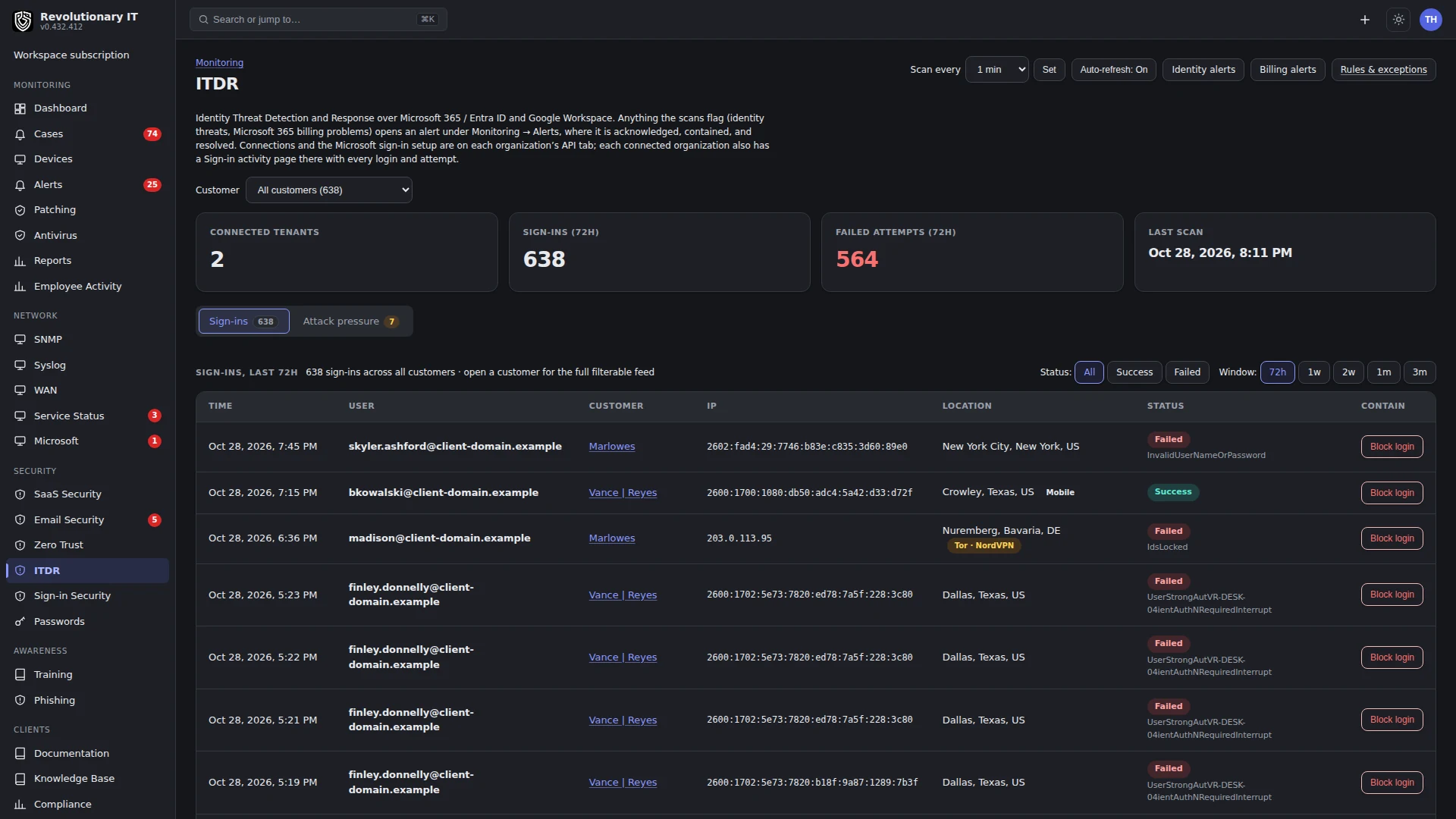
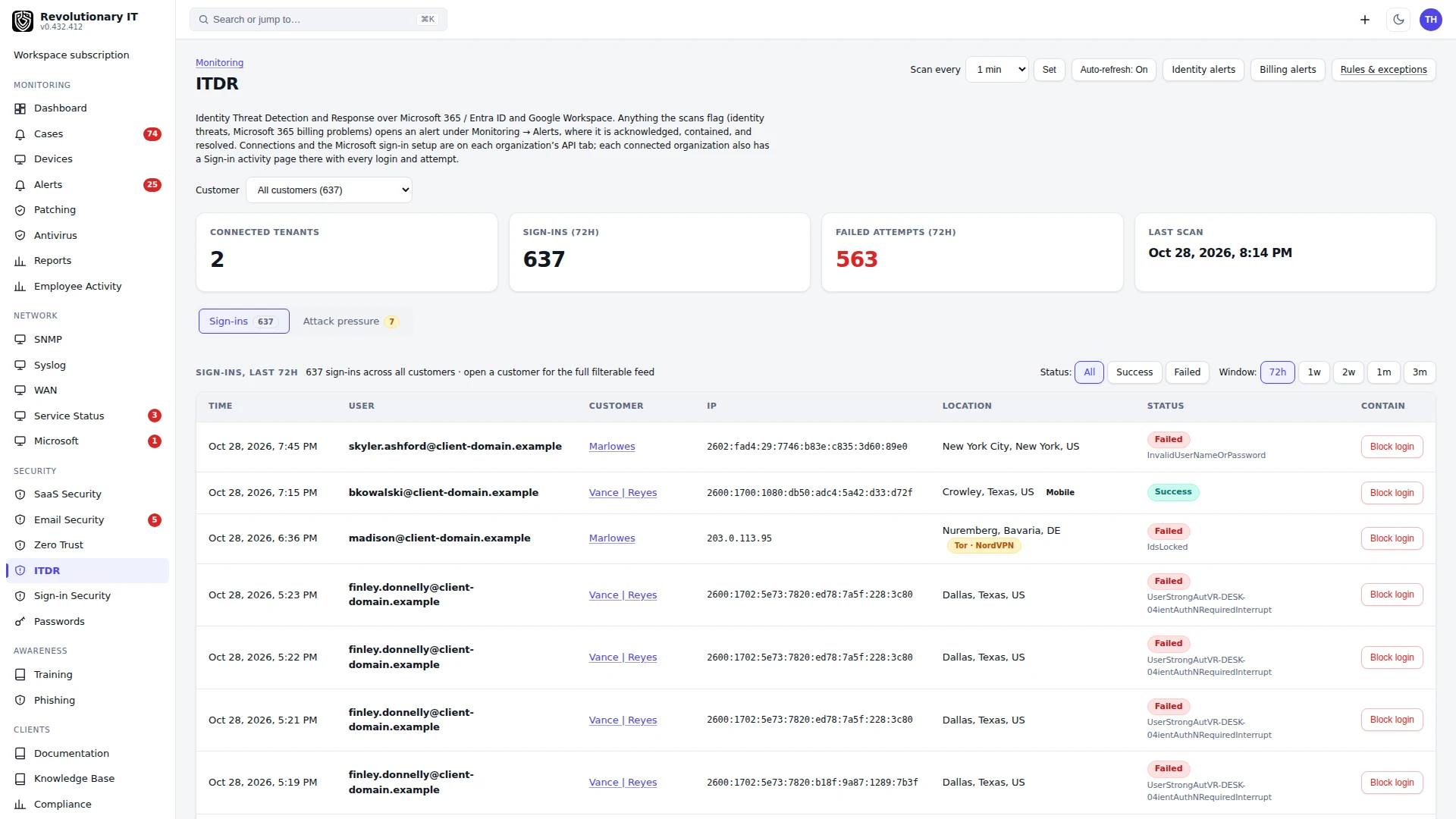
- Findings that do not alert: repeated failed sign-ins in an hour and slow password sprays over a day. Those are recorded and shown on Security > ITDR as attack pressure, because attackers failing to get in is not something a technician can act on.
- Rules: Security > ITDR > Rules: allowed countries and states, the VPN catalog, exceptions (a user, a country, an IP, a VPN, with dates) and a travel calendar so a traveling user does not trip the fence.
- Containment: high/critical findings can trigger the response path when Auto-contain is enabled for that connection. Microsoft block/revoke and Google suspend/sign-out depend on write scopes. The App independently attempts to disable the matching RMM/portal user, delete its App sessions, create a ticket and send mail even if provider containment fails. Medium findings do not use this automatic containment path; other account/provider policies can still block access. Block login is also available per user from the ITDR dashboard.
- Alerts: every alerting finding opens an ITDR alert; the ITDR page itself shows connections, KPIs, attack pressure and the sign-in pulse, not findings. Resolving on one side syncs to the other.
Response and recovery limits
Microsoft containment uses User.ReadWrite.All to block sign-in and User.RevokeSessions.All to revoke sessions; missing scope, policy or provider errors can leave either incomplete. Google read and write scopes are separated below. “Disable local login” means the matching App portal/RMM user, not a Windows/macOS/Linux operating-system account.
The current implementation can mark a finding contained after best-effort steps even when provider actions failed. Repeating Contain can return “Already contained” instead of retrying those failed operations, and an existing finding does not automatically rerun containment on later scans. Read the stored response log and provider state. Reconcile failed provider actions through authorized provider administration and restore provider access and App access separately when appropriate. Do not infer recovery from Resolve or prescribe repeated clicks as a reliable retry.
Google pagination, overlap and partial-coverage behavior below is implemented in source and also present in the inspected production file; the source/deployment differences found in this audit concern additional geography warnings. Actual tenant feed completeness and external containment were not exercised. Source status or a stored checkpoint is not independent provider acceptance.
Step by step: Microsoft 365
- Complete guide 15 (app registration, connect the customer).
- Org page > Credentials & API > SaaS > Auto-contain: on or off per customer.
- Security > ITDR > Rules: set allowed countries and states for the customer, add VPN ranges the customer uses, add exceptions.
Step by step: Google Workspace
- In Google Cloud: create a service account, enable domain-wide delegation, download its JSON key. In the Google Admin console, authorize the client with the scopes admin.directory.user.readonly for directory/import and admin.reports.audit.readonly for audit collection. Add admin.directory.user for authorized suspension and admin.directory.user.security for authorized sign-out; these write scopes are not needed merely to claim read collection.
- Org page > Credentials & API > SaaS > Google Workspace: paste the JSON key and the super admin email to impersonate; Connect. The setup guide on the tab lists the exact scopes.
- Import users and set Auto-contain as with Microsoft.
Step by step: GeoIP anonymizer detection (optional)
Administration > Apps > API: add a MaxMind account id and license key. The sign-in feed then names the operator behind each IP and flags vpn, hosting, proxy, residential or tor; the Insights endpoint is tried first and falls back to GeoLite2 if the key is not licensed for it.
Current source has no bundled offline geolocation database fallback. Older deployed UI text can still mention it; do not infer lookup coverage from that label. Without provider/source location, geography is unknown and geofence coverage is incomplete. Provider keys/entitlements are tenant-specific; a configured key is not proof of successful current lookup.
Day to day
- Security > ITDR: connected tenants, sign-ins and failed attempts in the window (72 hours to 3 months), attack pressure table, the sign-in feed across organizations with status filter, Block login per account, and Scan every.
- Per organization: Org page > Credentials & API > SaaS > Sign-in activity for the full filterable feed (user, country, status, days).
- Alerts: ITDR alerts carry Contain and Resolve on their page; a contained finding closes its alert.
- Portal: end users see their organization's connection status and sign-in feed under Identity (read-only, no findings).
Verification
- For an authorized benign provider event, verify the actual collector window, source location, finding classification and alert result. The watch setting is a schedule, not a guaranteed detection deadline. Unknown geography does not establish an allowed region.
- Attack pressure lists any account seeing four or more failures in an hour.
VPN provider exceptions and sign-in badges
For Microsoft 365, ITDR rules and exceptions include a VPN provider exception: choose a user and the VPN service they legitimately use, and their sign-ins through that service raise no VPN or geo-fence finding. Providers already seen on the workspace's sign-ins in the last 90 days are listed first. VPN findings name the provider where it is known. This needs a geolocation key that reports provider names, such as ipinfo Max, Spur or IPQualityScore.
ITDR sign-ins read from ipinfo show the VPN, proxy, Tor or hosting flag and, on ipinfo Max, the named service, such as VPN · NordVPN. A separate Mobile badge appears on ipinfo Core and above when the sign-in address is classified as a mobile network. Geo-fences and location exceptions match US states, DC and territories, Canadian provinces and Australian states whether written as a name or an abbreviation; other regions match by name.
Troubleshooting
- No sign-ins: check the selected window, collector status, errors, tenant licensing and consent. AuditLog.Read.All or the separate ActivityFeed.Read fallback permission may be missing; reconnect only after confirming the required scope.
- Google connection fails: the service account is not authorized for the scopes in the Admin console, or the impersonated address is not a super admin.
- Too many geo alerts: add the country or a travel window as an exception rather than widening the fence for everyone.