Microsoft 365 integration
Video guide: Find Microsoft setup prerequisites and verification steps
Recorded October 22, 2026 in the fictional Summit Managed IT staging workspace, App 0.432.1. The deployed demo can differ from the current product; use the written guide for current behavior. No customer tenant is connected in the demo; no device view, OAuth consent, Microsoft/Intune API call or managed-device action is demonstrated.
Full narration captions are included in the video. Open video full screen · Download subtitles · Download transcript
Video transcript
Open Microsoft from the Network section. No customer tenant is connected in this fictional workspace, so the landing page shows a setup instruction rather than tenant or device data. This recording does not authorize a Microsoft tenant or exercise provider APIs.
Open the written guide for setup and permission choices. Microsoft cloud records and fresh endpoint reports are different evidence. Read and write permissions are separate decisions. A described action does not prove that a tenant is licensed, consented or able to complete it.
Follow the written guide to connect an authorized tenant with the intended permission scope. Confirm the specific collector result and tenant mapping, then verify any separately approved action in Microsoft and the RMM. A successful token or connected label alone is not full feature acceptance.
What it does
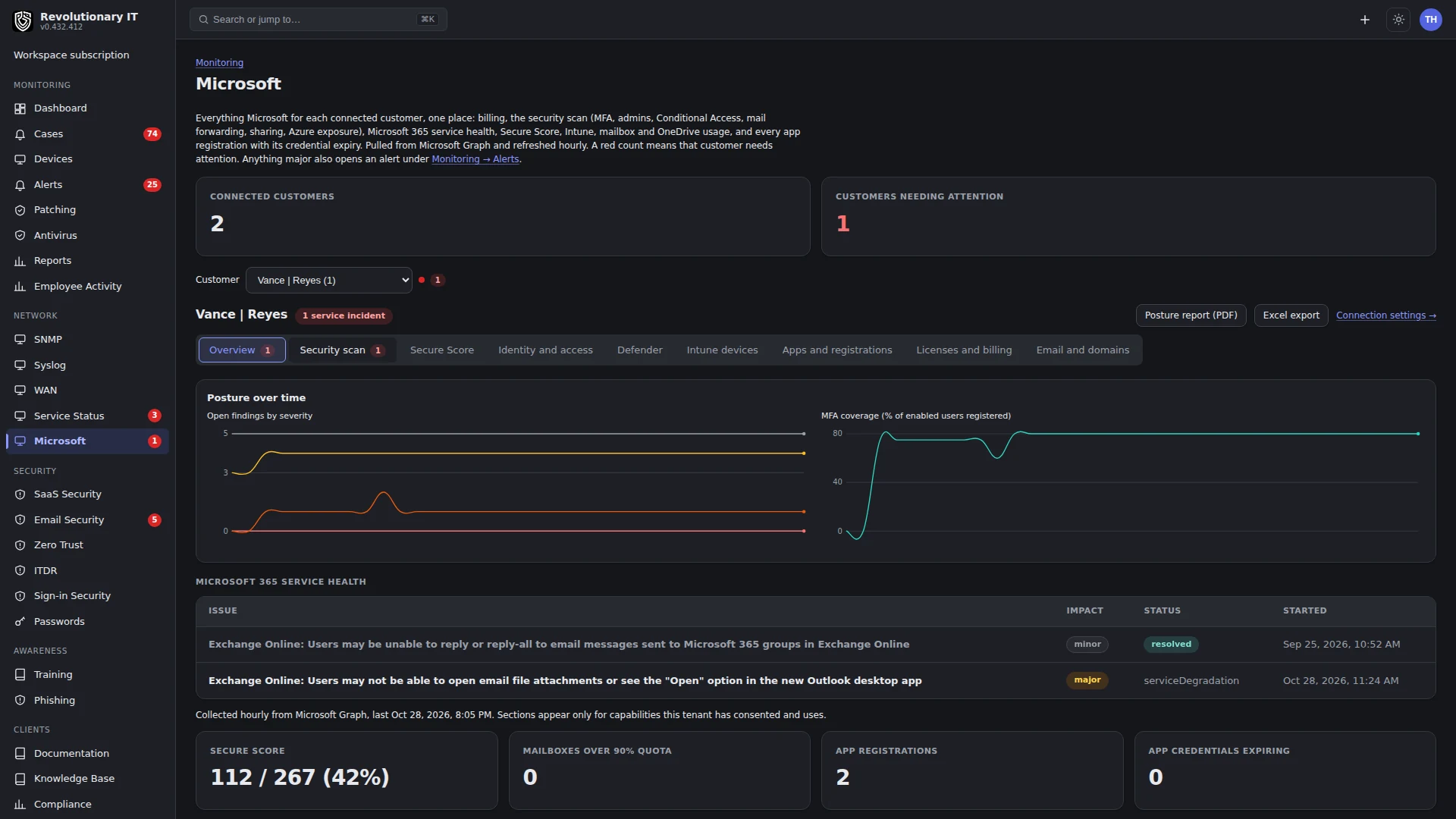
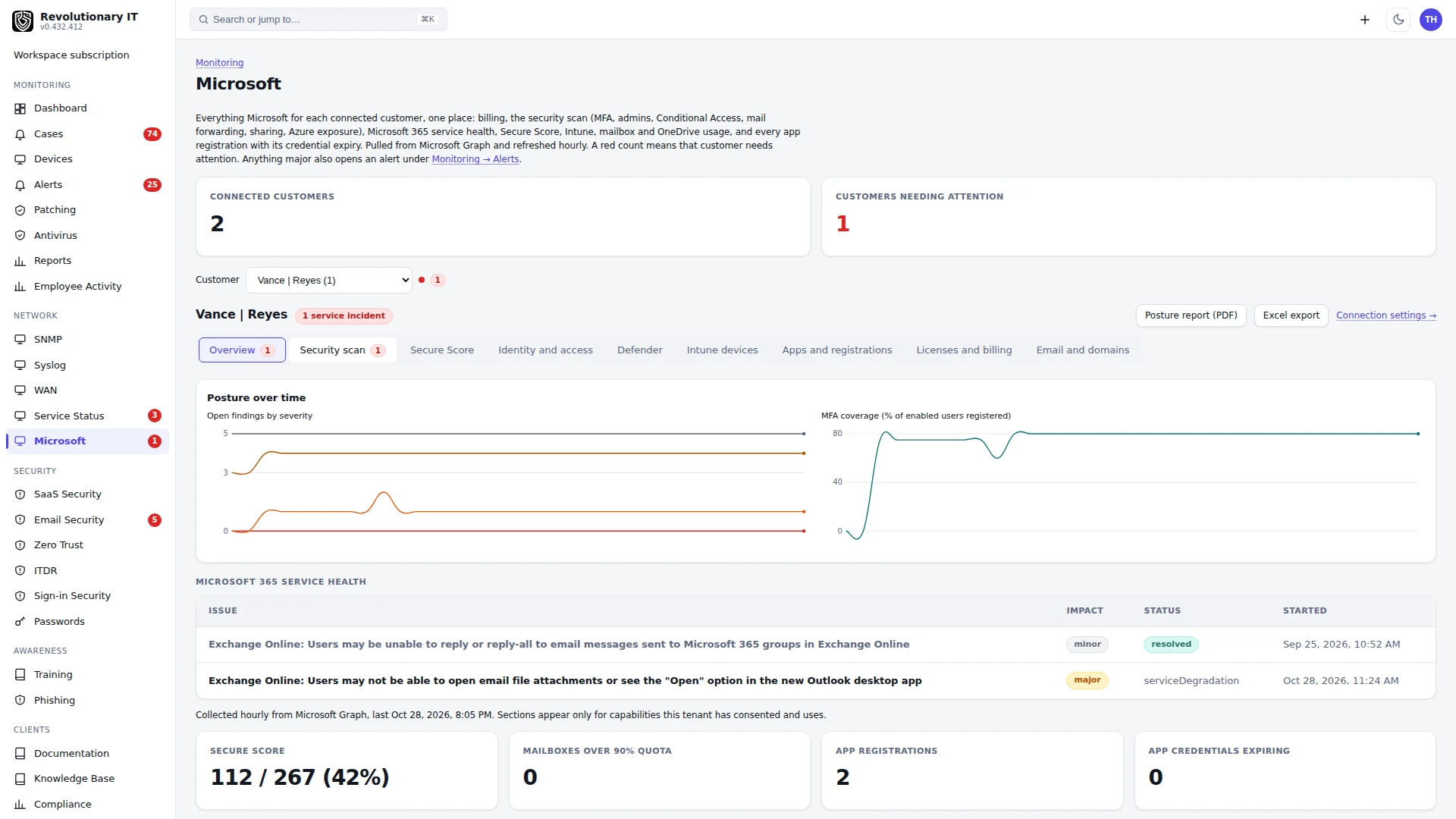
One Entra app registration owned by the MSP, consented into each customer's tenant with a popup, allows the configured readers and any separately authorized write operations. It is not inherently a read-only integration. From it the platform imports end users, scans sign-ins and audits for identity threats (guide 16), monitors subscription billing health, reads Defender alerts, Intune devices, Secure Score, licenses, app registrations and their expiring credentials, mailbox and OneDrive usage, mail domain authentication (SPF, DKIM, DMARC), consent policies and third-party app grants, runs a security scan (MFA coverage, admins, Conditional Access, forwarding rules, sharing, guests, stale accounts, Azure network security groups and storage), produces posture graphs and a white-label PDF or Excel report, and shows the tenant's service health. Network > Microsoft is the per-customer hub with nine tabs and a problem count per tab.
How it works
- App registration: multi-tenant, application permissions (no signed-in user), client-credential flow. The MSP configures it in its Entra tenant with only the permissions required for the intended collectors/actions below. The client ID is stored as an identifier; the secret is encrypted.
- Consent: on a customer's org page > Credentials & API > SaaS, Connect with Microsoft opens Microsoft's admin-consent page for that customer's tenant; a Global Administrator of the customer approves, and the redirect lands back on the workspace with the tenant id. Every time a new permission is added to the app, each tenant must be reconnected (re-consented) for it to take effect.
- Collection: the hourly ITDR scan drives every Microsoft collector for each connected customer (insights, security scan, posture snapshot, billing); the ITDR watch runs the fast sign-in checks every minute (configurable). A 401/403 can remove that insight kind’s stored snapshot or mark a security check denied. Other failures can leave an older snapshot. Missing/empty data is not proof of a healthy tenant; inspect per-check status, errors and timestamps.
- Alerts: Defender alerts (source DEFENDER), billing problems (BILLING), app credential expiry, security findings rated critical, and MFA coverage roll-ups (M365) open alerts; service health incidents can open CLOUD alerts, but the Microsoft 365 service incident alert is off by default and must be turned on in Alert Rules. Network > Microsoft's org picker shows a red count of open problems per customer, and the sidebar badge sums them.
- Actions: Intune sync, lock, restart, retire, wipe, delete, disable and enable per managed device (write permissions required); Show real names in usage reports (needs ReportSettings.ReadWrite.All); the client portal has a read-only Microsoft 365 tab.
Step by step: create the app registration (once)
- In the MSP's Entra admin center: App registrations > New registration. Name it, choose Accounts in any organizational directory (multi-tenant), redirect URI type Web set to the value shown on Administration > Apps > API > ITDR.
- Certificates and secrets: create a client secret; copy the value.
- API permissions > Add > Microsoft Graph > Application permissions. Select the Graph application permissions needed for your intended features using the matrix below. Do not copy an unrelated all-purpose mail-settings list as a blanket grant. Obtain the required administrator consent; stored credentials alone do not authorize customer access.
- For the unified audit log fallback, separately add Office 365 Management APIs > ActivityFeed.Read (application). This is not a Microsoft Graph permission. Audit availability and tenant licensing still need verification.
- Administration > Apps > API > ITDR: paste the Application (client) ID and the secret, save.
Permission and operation matrix
These are the permissions the implemented calls expect, not a claim that every tenant/license supplies every API. Separate read collection from optional writes.
User import
Graph User.Read.All
Directory/admin roles, guests, domains/licenses
Graph Directory.Read.All
App-registration credential expiry
Graph Application.Read.All or Directory.Read.All as accepted by the collector’s Graph request
Sign-in and directory audit
Graph AuditLog.Read.All; sign-in availability is license-dependent
Authentication-method/MFA checks
Graph UserAuthenticationMethod.Read.All
Conditional Access / consent policy
Graph Policy.Read.All
Forwarding settings
Graph MailboxSettings.Read
Sharing posture
Graph SharePointTenantSettings.Read.All
Secure Score
Graph SecurityEvents.Read.All
Usage reports
Graph Reports.Read.All
Defender detections
Graph SecurityAlert.Read.All
Intune inventory
Graph DeviceManagementManagedDevices.Read.All
Service health/messages
Graph ServiceHealth.Read.All / ServiceMessage.Read.All
Unified audit fallback
Office 365 Management APIs ActivityFeed.Read
Optional ITDR block / revoke
Graph User.ReadWrite.All / User.RevokeSessions.All
Optional report real-name setting
Graph ReportSettings.ReadWrite.All
Optional Intune sync/lock/restart/retire/wipe
Graph DeviceManagementManagedDevices.PrivilegedOperations.All
Optional Intune record deletion
Graph DeviceManagementManagedDevices.ReadWrite.All
Optional Entra device disable/enable
Graph Device.ReadWrite.All
Intune actions operate on devices already managed by Microsoft, not enrollment into RMM's Apple/Android provider. Sync/lock/restart/retire/wipe requests require provider/device compatibility and customer permission; accepted requests are not completed actions. Delete removes the Intune record without itself wiping the device. Disable/enable changes the matched Entra device account, not the RMM agent or every service session.
Deployment environment credentials take precedence over saved Microsoft app credentials where loadItdrM365App is used. If changing the saved configuration appears ineffective, have the platform operator verify which source is selected without exposing its secret. Expanded app permissions require customer re-consent. Newer source fixes to insight availability/score collection do not prove they are deployed; check actual errors and freshness.
Step by step: connect a customer
- Org page > Credentials & API > SaaS > Connect with Microsoft. Sign in as a Global Administrator of the customer's tenant in the popup and accept.
- The tab shows Connected with the tenant id, last scan, and buttons: Import users, Scan now, Reconnect with Microsoft sign-in, Disconnect.
- Import users considers active, licensed directory users; explicit Guests, disabled users and unlicensed users are excluded. Directory-synced membership alone does not guarantee import. Candidates can be reviewed and promoted or ignored.
- Turn on Auto-contain (guide 16) if wanted.
Step by step: use Network > Microsoft
Pick the customer at the top. Tabs:
- Overview: KPIs and the trend of findings, MFA coverage and Secure Score.
- Security scan: the 13 checks with status, findings table with CIS, NIST and Essential Eight references, severity filter, per-user MFA table, Scan now, and the PDF and Excel export.
- Secure Score: history and Microsoft's ranked improvement actions.
- Identity and access: admins, Conditional Access, consent policy, guests.
- Defender: alerts and the daily count.
- Intune devices: table with model, serial, encryption, and the Actions cell (Sync, Lock, Restart, Retire, Wipe, Delete, Disable, Enable; destructive ones require typing the device name or WIPE).
- Apps and registrations: third-party OAuth grants (AI apps and broad-access apps pilled), app registrations with expiring credentials.
- Licenses and billing: per-SKU used, total, available, license waste on disabled users, subscription billing health.
- Email and domains: mailbox and OneDrive storage used of allocated, mail domain SPF, DKIM and DMARC.
Verification
- Org page > Credentials & API > SaaS shows Connected and a last scan time within the hour.
- Network > Microsoft > Security scan shows every check as ran, denied (with the permission named) or none.
- Import users populates Org page > End Users.
Troubleshooting
- A check says denied: verify that this customer authorized the feature and the required license/scope. If access should exist, add only the needed permission and re-consent the customer. Do not turn a refusal into an indiscriminate write-permission grant.
- Sign-in feed empty: inspect collector errors, consent, tenant licensing and the selected time window. Graph sign-in availability is license-dependent; the unified audit fallback separately needs ActivityFeed.Read and re-consent.
- Azure check says none: no subscription has the app's service principal as Reader; grant Reader per subscription or mark Azure as not used on the org page.
- Mailbox names show as hashes: Microsoft conceals report identities; press Show real names (ReportSettings.ReadWrite.All) once per tenant.