Desktop agent: installation, reporting and updates
Video guide: Prepare enrollment and verify reporting prerequisites
Recorded November 11, 2026 in the fictional Summit Managed IT staging workspace, App 0.432.427. The deployed demo can differ from the current product; use the written guide for current behavior. Installer form preparation only; no enrollment token shown, installer generated or real device installed.
Full narration captions are included in the video. Open video full screen · Download subtitles · Download transcript
Video transcript
Start in Organizations and find the customer and location that should own the endpoint. This is the fictional staging workspace, not a customer environment. Enrollment scope matters because later policies, permissions and reporting depend on that customer assignment.
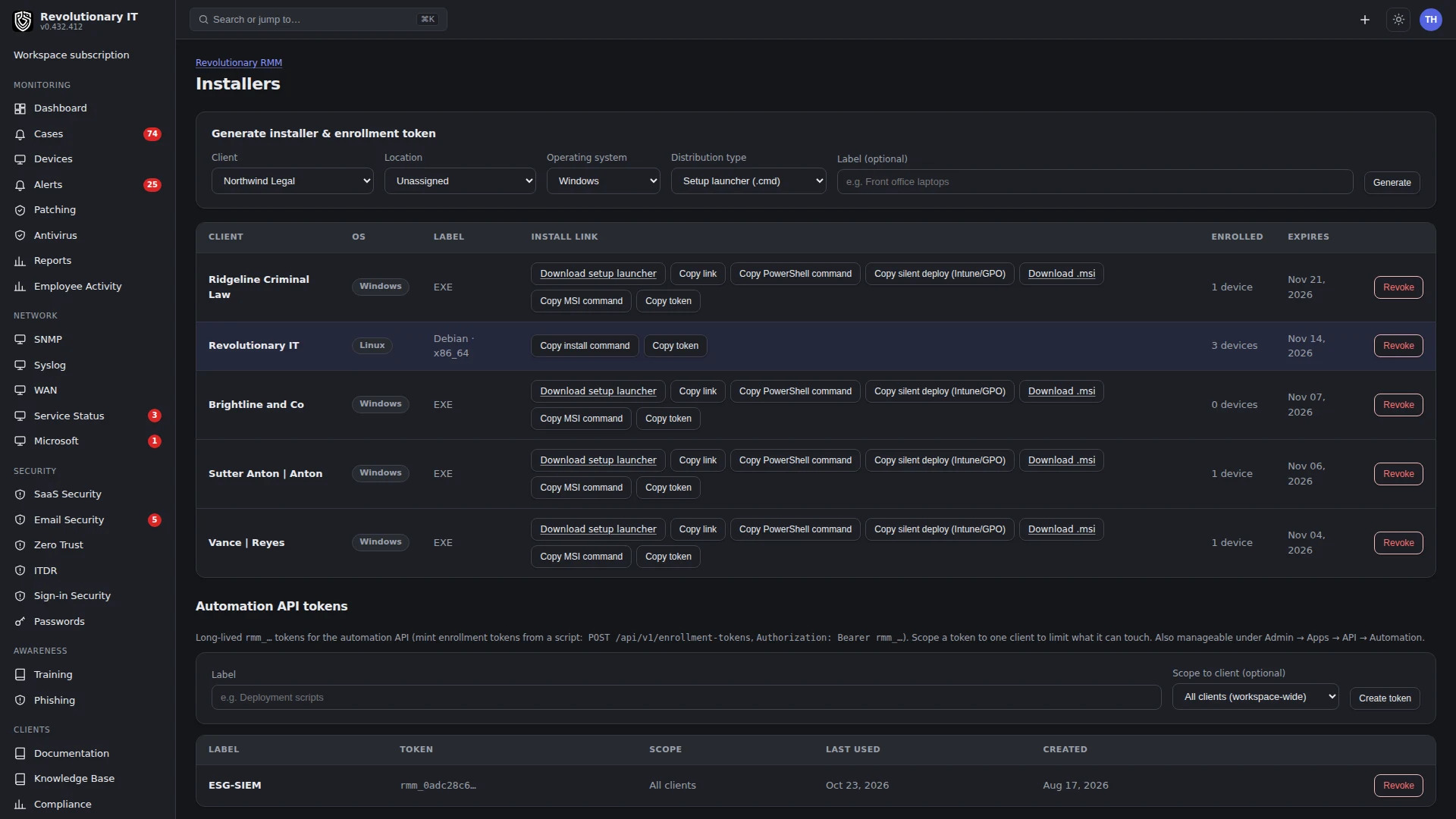
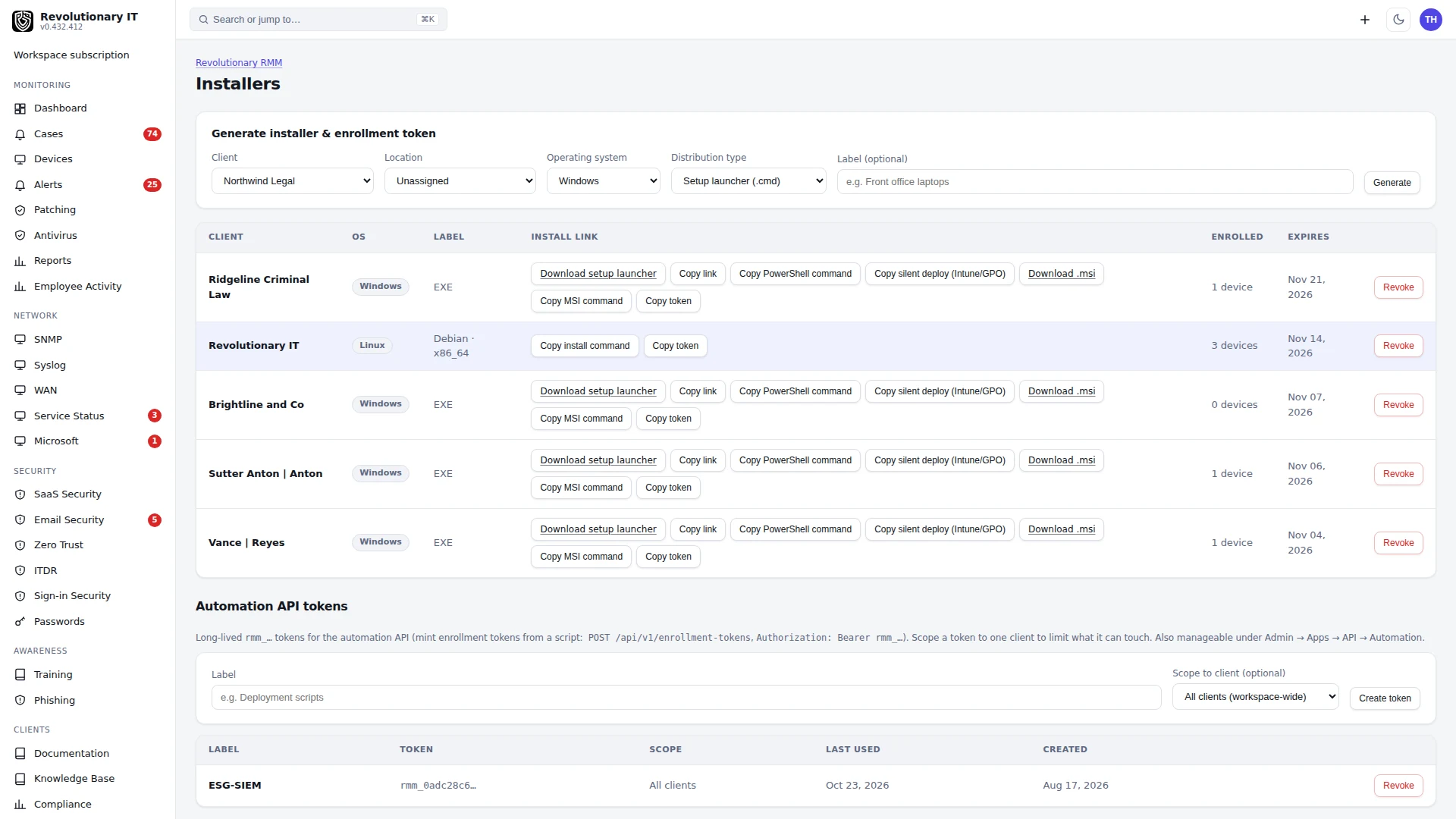
Open Installers. Select the intended customer, location and operating system, then inspect the distribution choices. We do not press Generate. Enrollment links are credentials and should not appear in a public training video.
After installing an authorized package on a real test machine, return to Devices and verify the correct customer and a later heartbeat. The old offline record shown here is an example of insufficient evidence. A download, an installer exit code or an initial device row alone is not verified ongoing reporting.
For your first computer use Getting started and Onboarding troubleshooting. Agent management covers Windows, macOS and Linux computers. Apple/Android MDM enrollment is a separate workflow: see MDM / EMM.
To install on one authorized computer, follow the task for Windows, macOS or Linux, then verify a later heartbeat and performance sample.
What the agent does
The agent is a privileged background service that normally checks in every 60 seconds. It reports metrics and inventory, receives signed commands, and supports remote sessions when the installed artifact includes native capture. Collection depends on OS, policy, privileges and the relevant collector's cadence; every check-in does not run a fresh full software or credential scan.
On desktops the agent also runs a small tray helper for the signed-in user. Each check-in reports whether the helper is expected and running, and Administration > General > Systray shows the fleet counts (Running, Expected not running, Not expected, Not reported and All devices) and lists each device whose tray is expected but not running, so a missing tray is visible without visiting the machine.
The agent and platform App have separate versions. Updating the App does not install a new endpoint executable. A tray helper runs as the logged-in user on supported desktops; privileged device credentials stay with the service. Available tray items depend on workspace settings and build/platform support. Request support starts a user flow; a tray click does not itself prove ticket or screenshot delivery.
Enroll a computer
- Open Generate an installer on Dashboard or
/installerson your workspace host. - Choose Client, OS, optional Location and Label, and distribution type. Choose Generate. UI-created tokens are reusable for 30 days; there is no expiry selector. Protect tokens and links. Revoke stops new enrollment using that token, not already enrolled agents.
- Use the instructions generated for that OS with the required local administrator/root access. Additional distribution choices do not establish that a separate DEB/RPM/DMG or MDM package was generated. Use the actual returned command or PKG path.
- Confirm the correct customer/location and later telemetry as described below. The server strips the hostname at its first dot and identifies the record by selected customer plus short hostname. Duplicate short names within that customer return 409 hostname_already_enrolled and never replace an existing agent credential. Preserve saved configuration on reinstall; if it is lost, use a distinct short hostname or obtain authorized retirement of the stale record after reviewing billing implications. Different customers have separate records. Resolve collisions before enrollment.
Automation: the Installers page also lists Automation API tokens. With a token, your deployment tooling calls the enrollment tokens API on your workspace host and receives an install link for one customer. A token limited to certain customers is refused for any other customer, and a call without a valid token is refused.
On Windows the interactive installer needs elevation; the generated silent deployment uses /S. The MSI and PowerShell paths are alternatives exposed by the installer flow. Use the generated parameters rather than assuming the same command applies to every distribution. Windows services handle agent/patcher updating separately from the user tray.
On macOS use the generated PKG. Package trust/notarization and native capture support depend on the exact artifact; follow your approved installation procedure. Remote control needs Screen Recording and Accessibility. Full Disk Access is relevant to protected-file scanning. Separately MDM-enrolled Macs can receive an agent PPPC profile, but Screen Recording still needs local approval. Installing the agent does not enroll the Mac in MDM.
On Linux use the generated root installer command. Source selects systemd/OpenRC and the applicable libc artifact. Desktop capture depends on the native build, X11/Wayland environment, portal and consent. Headless, musl and non-cgo artifacts have capability limits. A running service is not proof that screen capture works.
Reporting and offline periods
Enrollment creates the record and sets Last seen. An immediate Online badge or Enrolled attempt does not verify performance collection. Open the device's Overwatch and confirm CPU/memory and a later performance sample, then confirm Last seen advances on another check-in. Check Software sample freshness separately from heartbeat freshness.
Failed check-ins retain at most 1,000 metric snapshots in memory for replay after reconnect. The oldest are dropped at the cap and a process restart loses the buffer. Offline recovery does not guarantee gap-free graphs or preserve every collector's output.
Agent commands require signature verification. Execution privileges and timeout depend on command type and policy; shell actions can run with service privileges. Confirm the command's recorded output and native result, not just its queued state. Long-running patch tasks have a separate execution/result path.
Each enrolled agent holds its own secret, stored hashed on the server, that identifies exactly one device; re-enrolling the same hostname never rotates it. The agent polls over HTTPS with that credential and runs only commands signed for its own device id, so one agent's credential cannot act for another device.
Updates and release trust
Automatic updates use checksums and signed artifacts. Windows uses a sibling patcher; Linux/macOS update paths swap and restart the service. Failed checks can retain the previous binary or trigger rollback. The Windows patcher's own update has a narrower health check than the agent update. Do not interpret a version advertisement as proof that every endpoint accepted or ran it.
Every agent build is published with its checksum and an Ed25519 signature, and the agent verifies both before it installs an update; there is no setting that turns this check off, so an unverifiable package is simply not installed. Updates roll out per workspace: devices follow the stable release or a pinned version, a beta can be offered to a chosen share of devices first, and a rollout can be paused.
Commands are signed too: each job sent to an agent carries a signature over the exact job, the device it is for and an expiry. The agent verifies all three before running anything and refuses the job otherwise, so a stolen or replayed command does nothing. Human-issued commands record who created them.
The source trust policy checked on 2026-10-21 holds new release signing pending a separately approved fresh-key cutover. Historical recovery bundles are not an approved bootstrap merely because an earlier receipt accepted them. Coordinate new installation/recovery with your platform operator's current approved artifact and trust procedure. This guide changes neither endpoint trust nor an installed binary.
Troubleshooting and removal
- Missing record: verify workspace URL, token validity, network access and hostname collisions. Existing identities return 409 hostname_already_enrolled. Retain saved agent configuration on reinstall; lost configuration or a lost first response can require authorized retirement of a stale record or a distinct short hostname. Review billing implications first. A generated installer link is not a completed installation.
- Record without metrics: check service/logs and later samples. Use onboarding troubleshooting for enrollment outcomes and safe support evidence.
- Remote session without frames/input: verify exact artifact, native capture, local consent/permissions and application-control result. A Linux source build does not establish Windows/macOS acceptance.
- Old version: inspect activity/update errors and the current release/trust state. Windows can defer swaps during a remote session; a failed health check can roll back.
- Removal: arrange authorized native uninstall and verify the service/tray outcome before deleting the final record. Revoking enrollment tokens and deleting a device record do not uninstall the service. Deletion invalidates that device identity, but a reinstall or configuration reset can enroll again while a reusable enrollment token remains valid. The running agent does not automatically clear its stored secret and re-enroll on a rejected check-in.
Keep endpoint credentials, enrollment codes and private keys out of support messages. Share version, OS, time, redacted error and the stage that failed. Use the Learn guide index for related device and remote-control topics.