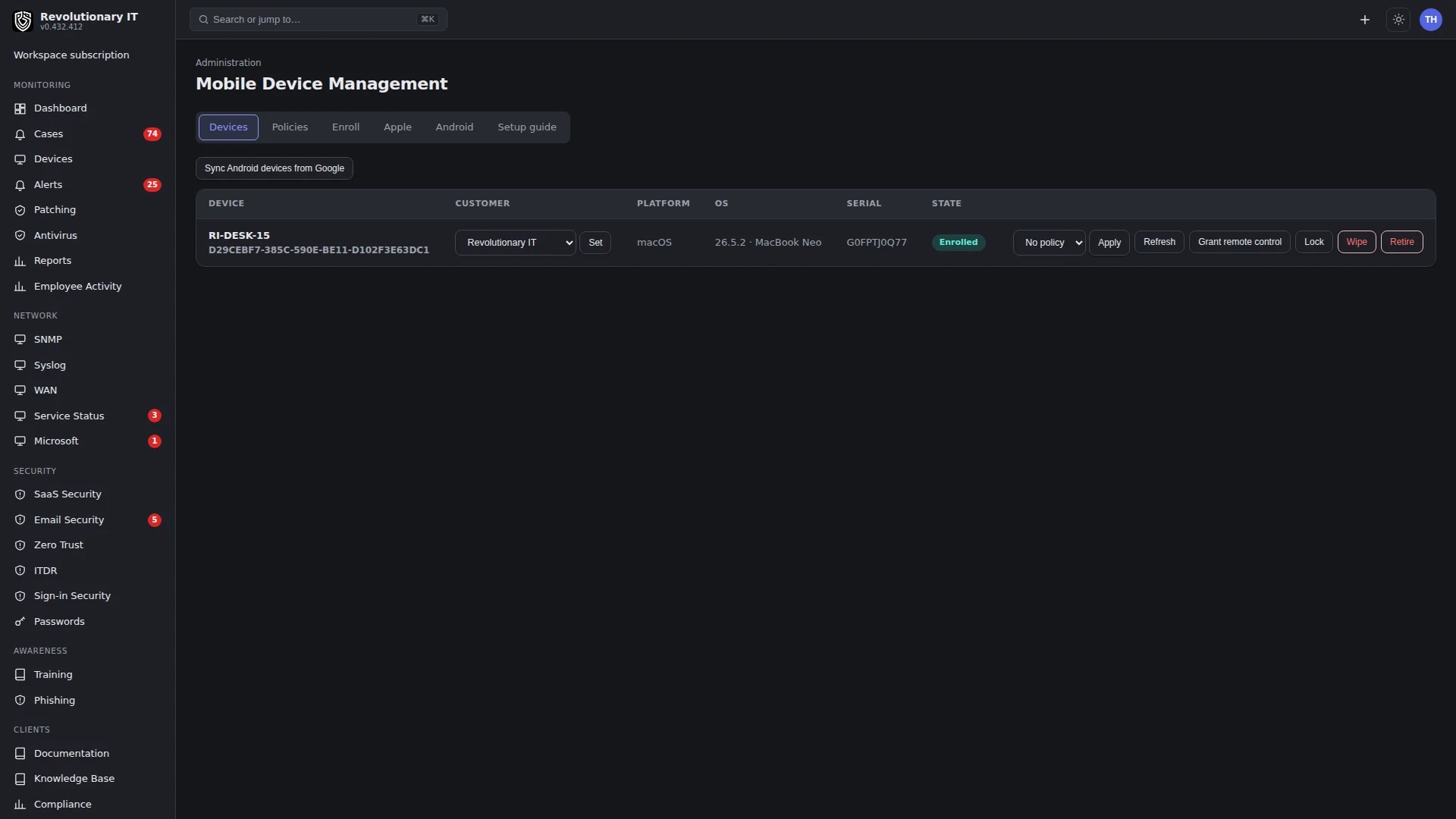
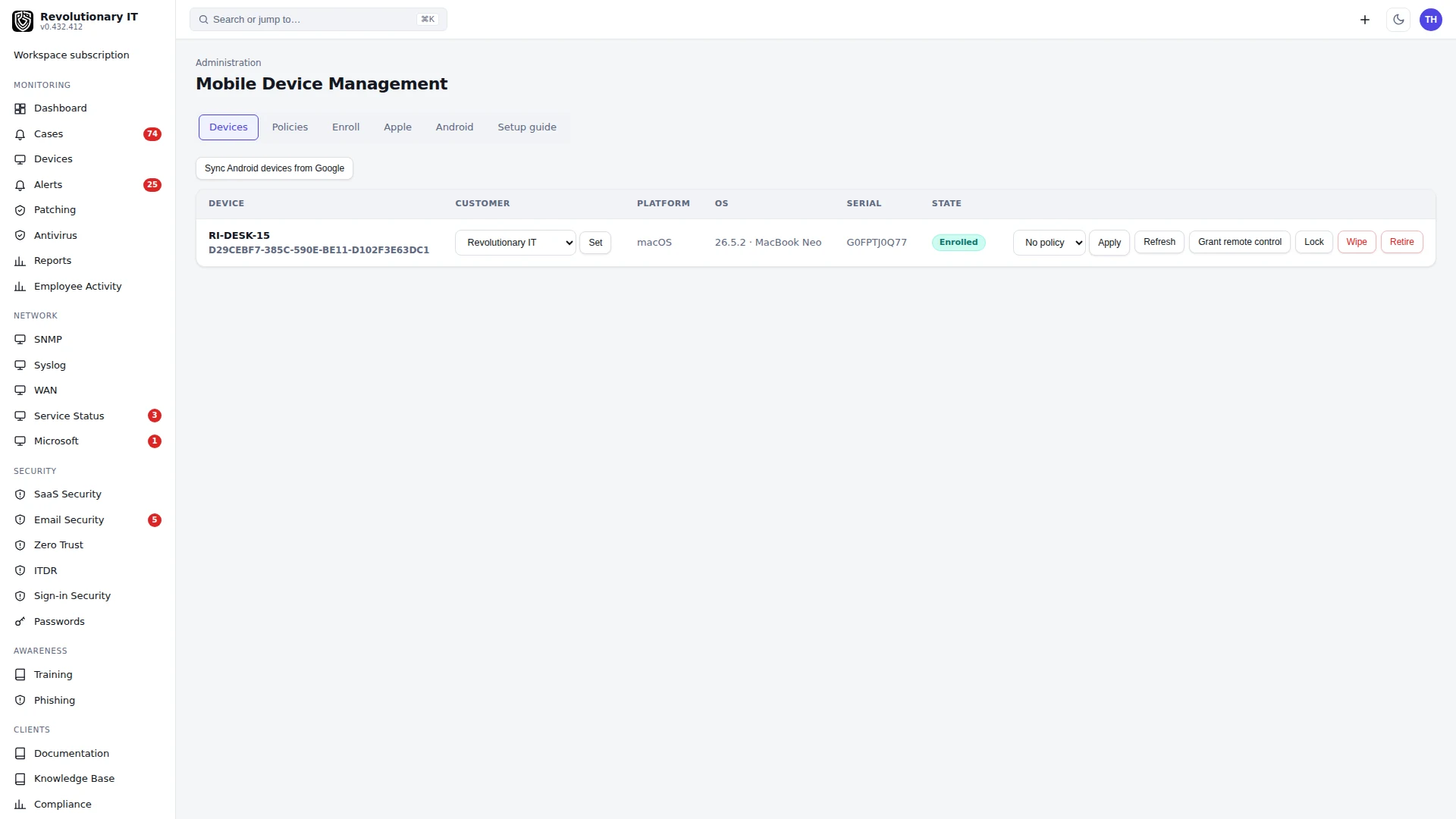
Mobile device management (MDM / EMM)
Video guide: Navigate MDM setup, enrollment and platform limits
Recorded October 22, 2026 in the fictional Summit Managed IT staging workspace, App 0.432.1. The deployed demo can differ from the current product; use the written guide for current behavior. Empty demo MDM workspace; no Apple/Google credentials, mobile enrollment or action dispatch.
Full narration captions are included in the video. Open video full screen · Download subtitles · Download transcript
Video transcript
Open Administration, Policies, MDM. The Devices tab is empty in this fictional workspace. A desktop RMM agent is not an Apple or Android MDM enrollment. Managed devices require the platform-specific service configuration and the correct customer assignment.
Open Setup guide and inspect the Apple and Android prerequisites. Platform keys, certificates and enrollment links are sensitive; never include their real values in training. This walkthrough uses the built-in guide without connecting a provider or uploading credentials.
Open Policies, then Enroll to locate their separate workflows. Enrollment creation is not successful device management, and a queued command is not an acknowledgement. On an authorized test device, verify enrollment, later sync and the actual platform action result before calling setup complete.
MDM is Revolutionary RMM's Enterprise Mobility Management capability area. Open Administration > Policies > MDM (/admin/mdm) as a workspace OWNER or ADMIN. This is in the tenant App; the separate platform Console provisions workspaces and does not operate an MDM provider.
Platform coverage
iPhone / iPad
Manual profile enrollment, inventory refresh, passcode/restrictions/Wi-Fi configuration, Lock and Wipe
Requires the workspace's APNs MDM push identity. No Apple restart button, Automated Device Enrollment, Apps & Books integration or Lost Mode/location workflow.
macOS
Apple profile enrollment and actions above; agent permission profile; serial-based Remote erase from the computer's device page
MDM and desktop-agent enrollment are separate. Screen Recording requires local approval; MDM supplies no remote screen stream.
Android
Google enterprise binding, Google-issued enrollment code/QR, AMAPI policies, Sync, Lock, Reboot and Wipe
Requires a working Google service account and bound enterprise. No provisioning-mode selector, managed Play catalog UI or command-completion view. Confirm the intended ownership mode before enrollment.
Windows / Linux
Desktop-agent management
No Windows/Linux enrollment provider in this MDM screen. Windows' agent-triggered factory-reset helper uses a local MDM bridge as a fallback; that does not make this a Windows MDM service.
Code availability is separate from a verified device outcome. The 2026-10-21 read-only deployment check found matching MDM files in the staging/production deployment trees, one enrolled production Mac, one acknowledged inventory command and two acknowledged profile commands. It found no enrolled iOS/iPadOS/Android devices and no Google credentials or bound enterprises in the active workspaces inspected. This snapshot does not establish historical use, Apple lock/erase success, Android customer readiness or support on every OS release. Verify the actual workspace and a permitted test device before rollout.
Existing Microsoft Intune devices
Separately, Network > Microsoft offers actions on devices already enrolled in Microsoft Intune: sync, lock, restart, retire, wipe, delete, and matched Entra device disable/enable. This can include Windows devices managed by that external provider; it is not Windows enrollment into RMM’s Apple/Android MDM screen. Each operation needs the appropriate Microsoft permission/license and compatible device mode. Delete removes the Intune record rather than wiping the device; disable/enable changes the Entra device account. Provider request acceptance is not native completion. See Microsoft 365 management for the read/write permission matrix.
Prepare Apple enrollment
- Obtain an APNs MDM push certificate through your approved signing process. Keep the matching private key and certificate renewal/account records. RMM accepts existing material; it has no CSR generator, signing service or certificate-upload wizard.
- On Apple, paste the PEM certificate and matching private key, plus its topic (
com.apple.mgmt.External.…), then Save Apple settings. The stored badge reports presence, not validity, expiration or a successful APNs connection. Never share the private key in a support ticket. - On Policies, optionally create an Apple policy from a template or JSON. This screen creates/deletes policies; it has no existing-policy editor. To change settings, create a replacement and apply it to the device.
- On Enroll, select the customer, iOS / iPadOS or macOS, optional policy and label, then Generate. Share the branded link privately or use Email to customer. Email acceptance does not prove inbox delivery or profile installation.
- Open the link in Safari on the intended device, download the profile and approve management in its profile settings. Settings labels vary by OS; follow that device's prompts. This does not install the desktop agent.
- In Devices, wait for Enrolled, then use Refresh and check returned name, OS, model and serial. Enrollment and policy application are asynchronous; there is no guaranteed one-minute completion.
Download requires configured Apple settings and an unexpired, unrevoked enrollment. Each downloaded profile contains a generated identity. The server verifies signed messages and pins the signer at Authenticate. Commands queue for the device; APNs attempts to wake it. An accepted queue request is not a completed action. macOS user-channel polls receive no device commands.
Prepare Android enrollment
- Use a Google Cloud project/service account authorized for the Android Management API under your organization's Google requirements. On Android, save its JSON. A stored badge does not test Google authentication or enterprise eligibility.
- Choose Connect Android Enterprise with Google and complete signup. The callback records the enterprise and pushes a default reporting policy. Verify the result; a partially completed binding or Google error needs reconciliation before enrollment.
- On Policies, create Android AMAPI JSON or a template. Ordinary policy creation pushes to Google when connected and removes the new local policy on rejection. Templates are created locally and pushed when an enrollment uses them. Policies saved before binding are also pushed when selected for enrollment, rather than automatically on binding.
- On Enroll, choose customer, Android, optional policy and label, then Generate. A connected enterprise issues the Google code/QR; no connection means an error, not a usable fallback code. Without a selected policy, the default enables reporting without imposing the starter template's passcode restrictions.
- Use the QR/code in the approved provisioning flow for that device/ownership mode. The landing page offers setup-QR and Android Device Policy code instructions, but RMM does not select or validate the mode. Confirm compatibility and data-removal consequences before any device reset.
- Choose Sync Android devices from Google. Confirm inventory and explicitly set the imported device's Customer > Set: sync does not copy customer or policy assignment from its enrollment into the imported MDM device. Check portal visibility with the intended customer account.
Sync works without Pub/Sub. For event updates, the Android tab describes configuring the enterprise topic and a push subscription to the displayed tenant-host URL. Protect its URL key as a credential. The app imports enrollment/status payloads and acknowledges command notifications without recording their results. It does not automatically install the subscription.
Policies and actions
Apple JSON supports passcode, restrictions and wifi, not arbitrary Apple payloads. Passcode options include required/minimum length, alphanumeric, inactivity and failed-attempt limits. Restrictions cover camera, screenshots, app installation/removal, encrypted backups and Safari. Wi-Fi accepts SSID, password, hidden and security settings. Unknown keys are ignored; an all-permissive restrictions object can produce no payload. OS/supervision restrictions determine what the device accepts.
An Apple policy can also carry a kiosk block that locks a supervised iPhone or iPad to one app (Single App Mode), named by its bundle identifier. A Mac is refused because macOS has no Single App Mode. Assigning a policy without the block, or clearing the policy, unlocks the device; confirm the change from the device's installed profiles, not from the push.
On enrolled Apple devices choose a policy and Apply; No policy > Apply queues removal of the currently assigned profile. Stable identifiers replace repeated copies of the same policy. Selecting another policy removes the previous profile before installing its replacement. Local assignment can change before acknowledgement. Deleting a policy record alone does not remove its profile from a device.
Android accepts AMAPI JSON. The App has no Android per-device Apply/remove selector; selected policies are pushed before enrollment-token creation. A saved template is not evidence of enforcement.
Apple Refresh
Queues DeviceInformation; a successful reply updates name/model/OS/serial. The list displays neither Last check-in nor command-result history.
Apple Lock / Wipe
Queues DeviceLock / EraseDevice and attempts APNs wake. Requires push token and PushMagic. Confirm the native outcome; a success message describes dispatch. Wipe is destructive.
Mac Grant remote control
Queues the agent's PPPC profile for Accessibility and user approval of Screen Recording; also attempted on enrollment. Its local sent marker does not prove installation or bypass local Screen Recording approval. Remote control uses the separate desktop agent.
Android Lock / Reboot
Calls Google's command API. Acceptance is not endpoint completion; support depends on device/ownership mode.
Android Wipe
Deletes the Google resource and marks the local row Retired. Depending on ownership it can reset the device or remove its work profile. Confirm authorized scope and actual outcome.
Retire
Only changes the local state. Sends no Apple removal or Google deletion. It also blocks the Apple command channel while the record is Retired, leaving profiles installed; it does not prove unenrollment or stopped policy enforcement. Later device/provider updates can change state again.
Revoke enrollment
Revokes the local row. Apple downloads/check-in/connect and RMM landing/QR/email paths refuse it. Revoke asks for confirmation first. Android tokens created from App 0.432.426 on are also deleted at Google; if Google cannot delete one, the enrollment stays active so you can retry. Older Android tokens are revoked locally only and stay usable at Google until they expire. Revoking can block existing Apple management communication. It is not device offboarding.
Use Customer > Set to assign/reassign devices. Portal visibility uses that assignment. Protect reusable enrollment links/codes: their creation lifetime is 30 days, and they are not personal single-use invitations. Apple Used increments at profile download, not enrollment success; Android sync does not increment it.
Verify and troubleshoot
- Apple download fails: check expiry/revocation and Apple topic/PEM/key. Missing configuration returns
apple_mdm_not_configured. Resolve the cause before reinstalling profiles. - Apple Pending or no action: check device reachability, profile approval, push identity/topic and returned inventory. Push is best effort and the UI has no complete queue/result history. Ask the operator to inspect command results without sending private identity material.
- Android code rejected: create an enrollment after binding; old local fallback codes are unusable. Confirm the intended provisioning flow rather than assuming every code supports every ownership mode.
- Android inventory/portal empty: run Sync, inspect any Google error and verify customer assignment. Without a configured subscription there are no automatic Pub/Sub imports.
- Mac Remote erase unavailable: the computer needs a reported serial matching a macOS MDM record with push material in the same workspace. Agent enrollment alone is insufficient. Never erase as a connectivity test.
- Offboarding: arrange approved native removal and verify policies, provider enrollment and agent access separately. Retire, policy deletion, revocation and deleting a computer row do not constitute verified offboarding.
Use first-device help for computers and the Learn guide index for other topics. Obtain customer permission and use an authorized test device before lock, reboot or wipe.