Patching
Video guide: Read patch inventory and deployment evidence
Recorded October 22, 2026 in the fictional Summit Managed IT staging workspace, App 0.432.1. The deployed demo can differ from the current product; use the written guide for current behavior. Empty patch inventory and navigation; no installation, reboot or compliance result.
Full narration captions are included in the video. Open video full screen · Download subtitles · Download transcript
Video transcript
Open Monitoring, Patching. This demo has no pending updates, and its devices are offline. An empty table does not mean every device is patched. First confirm a recent update scan and the intended customer and device scope.
Open Deploy and auto-deploy to inspect the deployment workflow. Approval and scheduling must match the customer maintenance window and reboot policy. This recording does not queue an install. Review the current deployment settings and pilot evidence before a real rollout.
Open Deployments, then Compliance by customer. A queued deployment is not an installed update. Confirm the endpoint result, later scan and any required reboot. Where AI ratings are unavailable, the page may show title-derived ratings; that is not an AI investigation or proof of patch safety.
Video guide: Read Rings authorization limits and Ledger receipts
Recorded November 11, 2026 in the fictional Summit Managed IT staging workspace, App 0.432.427. The deployed demo can differ from the current product; use the written guide for current behavior. Read-only authorization and receipt orientation; no campaign proposal, authorization, dispatch or export.
Full narration captions are included in the video. Open video full screen · Download subtitles · Download transcript
Video transcript
Open RevEngine, Rings campaigns. A proposal captures scope and a workload-matched canary baseline. A separate Owner or Admin review authorizes the exact stored manifest. Read the page carefully: campaign execution is not connected and no patch deployment is available through Rings. STOP cancels queued Rings installs, a command already picked up may finish, and STOP does not uninstall updates.
The page requires current telemetry, recent canary heartbeats, build and workload tags, pending patches on all targets, and a continuous twenty-four-hour baseline. The offline training inventory cannot satisfy these prerequisites. We leave the proposal form unchanged and do not claim a campaign was accepted.
Open Ledger to inspect the receipt list and chain status. Hash-linked receipts cover selected RevEngine workflows; full action coverage and backup-restore acceptance remain incomplete. A recorded authorization is not a dispatched job, and a chain status is not a successful endpoint patch installation.
What it does
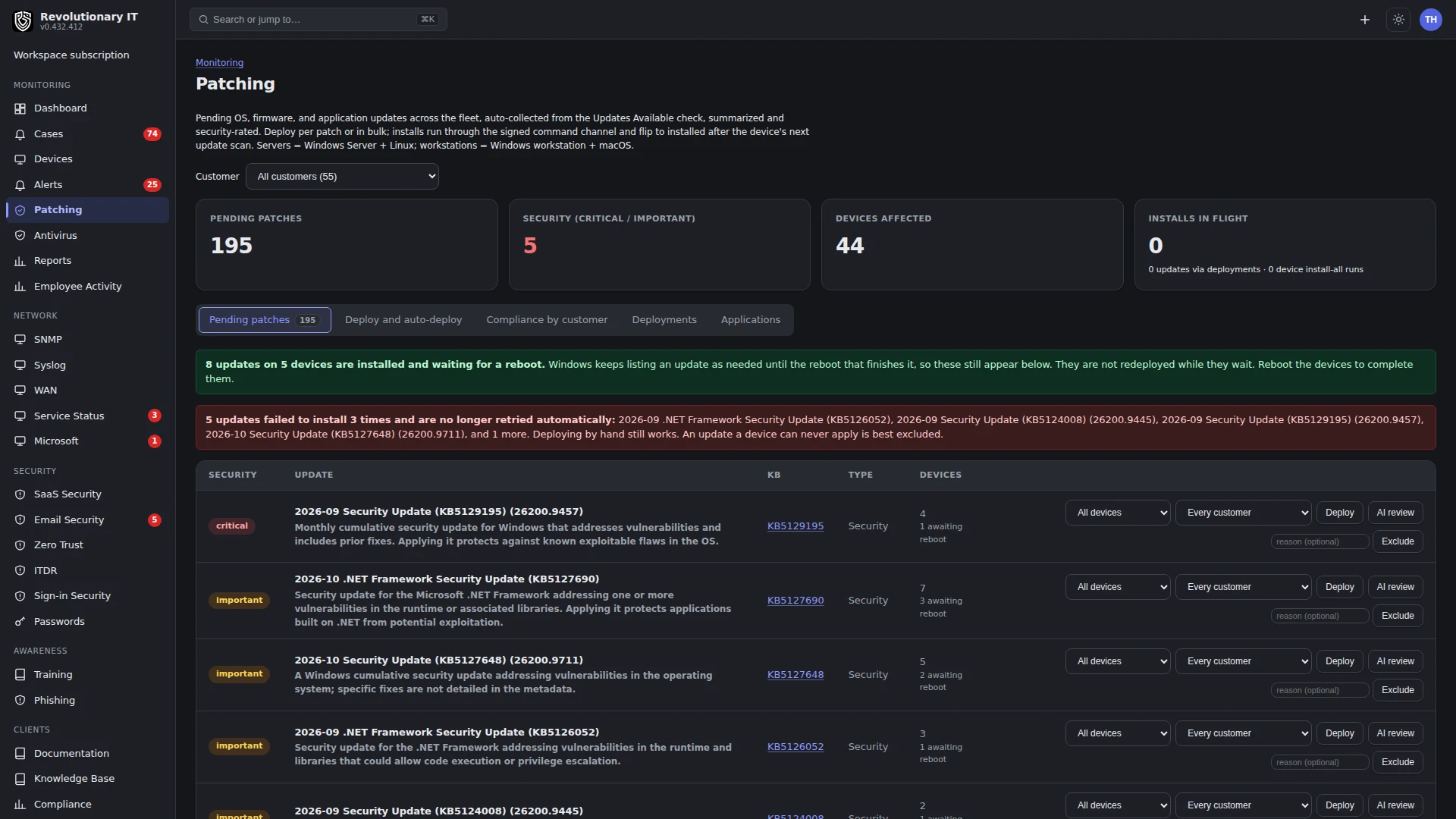
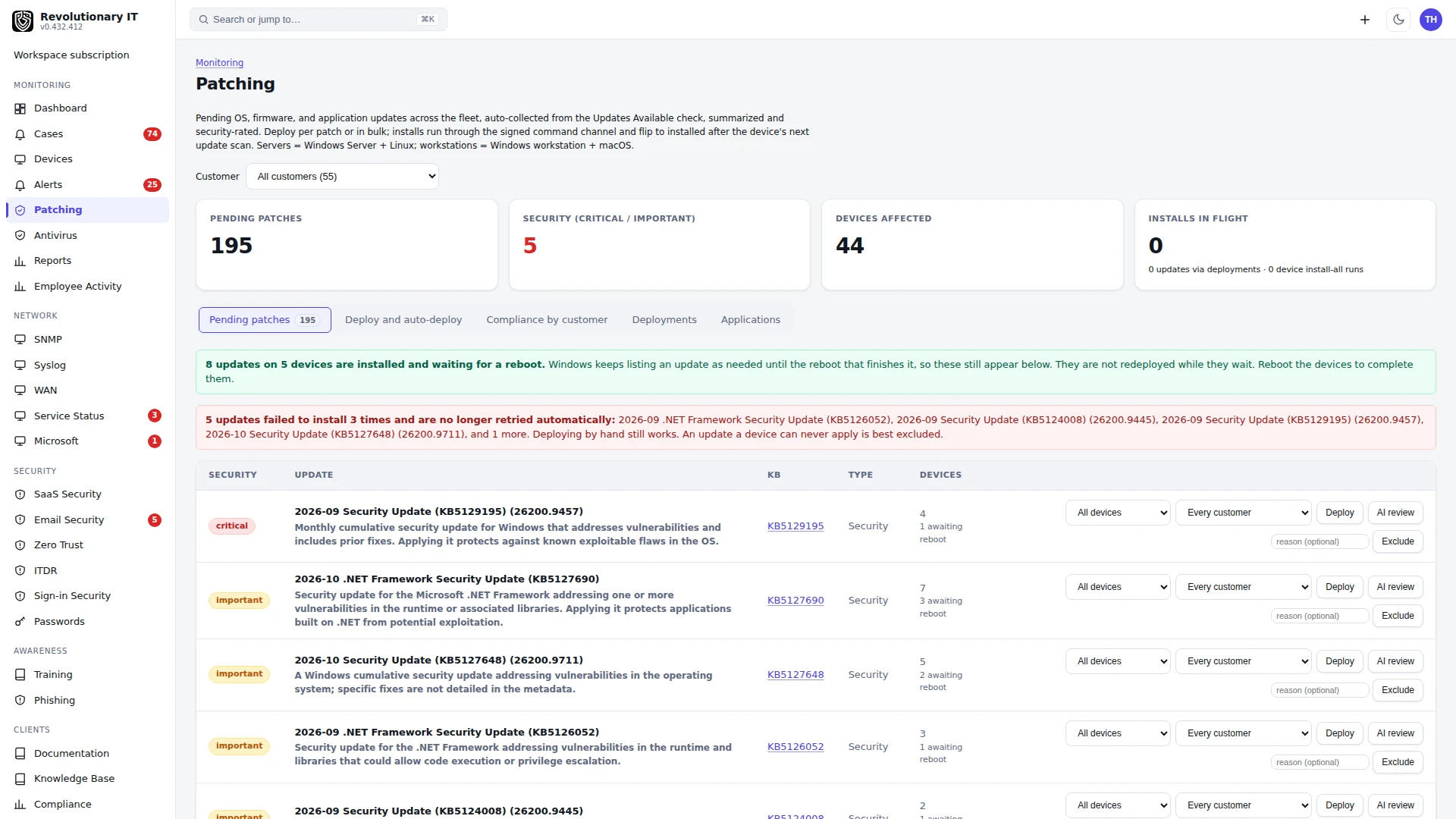
Patching inventories pending updates on every device (Windows Update, macOS software update, Linux package managers), builds a catalog of every distinct update with a severity, lets a technician install selected updates or everything on a device, deploys a chosen update to many devices at once, and can deploy critical and important updates automatically after a grace period. Progress and history are visible on the relevant deployment or device patch run.
Each update carries a stability label drawn from how it behaved across the fleet: Appears Stable, Caution or Known Issues. An update with too few completed installs shows insufficient data rather than a guess, devices still installing do not count, and a single reboot loop downgrades an update to Caution.
How it works
- Collection: the agent reports pending updates (count, security count, reboot required, items) when the policy's Patching trigger asks for it. The patch-scan timer (every 15 minutes) ingests the reports into the catalog and the per-device pending list, reconciles the pending inventory with deployment verification, and re-arms rows that a failed or expired deploy left behind.
- Catalog: one row per distinct update (KB, package, title) with a severity: critical, important, moderate, low, unknown. Severity comes from the vendor classification and is refined by the AI review (ai assistant guidance from support) when an API key is present: the model researches the update on the web with citations and may promote it to critical. An update can be excluded from catalog-selected deployments and auto-deploy, and ignored by compliance, or re-allowed. The device's Install all pending runner scans the operating system directly and does not apply catalog exclusions. If an exclusion must be honored, use reviewed selected/catalog deployments instead. Exclusion also does not stop another management tool or the operating system from installing it.
- Deployment: catalog-selected and fleet installs record deployments with one target per device (command id, state), shown on the Patching progress board. Install all pending instead records a patch run and device-work result, with progress on the device page. A failed device gets one automatic retry within 24 hours; offline devices leave their command to expire and are re-armed on the next scan.
- Device installs: Install all pending uses a detached patch runner, reports live progress and is not subject to the ordinary 15-minute shell cap. Install selected uses the catalog deployment path and its normal shell-command timeout. An active runner holds conflicting installer and reboot actions; inspect the current job before starting more work.
- Auto-deploy: one rule per workspace. When on, updates at or above the chosen severity are deployed to every device that still has them pending after N days in the catalog. Saving or disabling the rule is audited.
- Reboots: a device that reports reboot required shows a Reboot button on its Patching tab (offline devices queue it). The Patching trigger can make a pending reboot a critical alert.
Step by step: enable patch monitoring
- Confirm the platform's policy has the Patching trigger on (it is on by default) and set Alert above N pending and the critical flags to taste (Policies and automations).
- Wait for a later agent update inventory and the background patch scan. The first scan with reported updates fills the catalog; the Monitoring > Patching page then shows counts.
Step by step: review the catalog
- Monitoring > Patching. The top shows fleet counts by severity and the deployment progress board.
- The catalog table lists each update with severity, how many devices have it pending, the AI review verdict and sources. Press an update for its detail, or Exclude to keep it out of catalog-selected and auto-deploy paths. The Install all pending runner does not honor this catalog exclusion. Excluded updates can be re-allowed later.
Compliance is only ever read from a fresh scan: no scan or an unreadable one shows as unknown, a scan past its age limit shows as stale, neither ever counts as compliant, and any outstanding critical or important update makes the device noncompliant whatever else the scan says. An update waiting on a reboot is not deployed again, and if the reboot does not clear it the row re-arms and counts the attempt.
Step by step: install on one device
- Device page > Patching tab. Tick reviewed updates and press Install selected; this path checks catalog exclusions. Use Install all pending only when installing all OS-offered pending updates is intended: that runner bypasses catalog exclusions.
- For Install all pending, watch the runner progress. For Install selected, inspect the deployment and its command result. When the device reports reboot required, press Reboot.
Step by step: deploy one update to many devices
- Monitoring > Patching > the update > Deploy. Pick the organization, location or the specific devices.
- A deployment record appears on the board. Failed devices retry once automatically; expired-offline ones are re-armed for the next scan and picked up by auto-deploy if the rule covers them.
Step by step: auto-deploy
- Monitoring > Patching > Auto-deploy rule. Turn it on, set the grace period (how many days an update can stay pending) and choose all devices, servers only or workstations only. The rule always deploys critical and important updates.
- Save. From the next scan, qualifying updates that have been pending for longer than the grace period are deployed. Put patch nights in a maintenance window (Policies and automations) so the resulting reboots do not page.
Step by step: per-location update source
Org page > Locations > Edit > Patching: organization default, device default, Microsoft default, or a custom WSUS server URL. This is stored for the site; the agent does not yet enforce a WSUS source on the device.
Applications inventory
The Applications tab is a searchable fleet software inventory. Owners and admins can set an update policy per application and send updates; an update counts as done only after a later inventory shows the target version. Check the full-scan sample time before treating an installed version as current.
Verification
- Monitoring > Patching shows a catalog after the first scan and device counts that reconcile with the per-device Patching tabs.
- Check the deployment verification state after a later scan. A successful install command is not enough: the update must leave the pending list, and any required reboot must be observed before recovery is verified.
Troubleshooting
- Patching page empty: check the policy's Patching trigger, the device's latest update sample and whether it actually has pending updates. If fresh device data never reaches the catalog, ask support to check background scanning.
- No critical severities on staging or a new workspace: the AI review needs a funded API key (Administration > Apps > API); without it the vendor classification is all you get.
- Big cumulative updates time out when deployed from the catalog to many devices: where appropriate for the intended update scope, use the device page's Install all pending runner; the fleet deploy path uses a normal shell command with the 15 minute cap.
- Auto-deploy switched itself off: the rule save is audited under Administration > Logs > Audit Log; check who saved it.