Policies, triggers, automations and remediation
Video guide: Prepare a scoped agent policy
Recorded October 22, 2026 in the fictional Summit Managed IT staging workspace, App 0.432.1. The deployed demo can differ from the current product; use the written guide for current behavior. Unsaved policy form and baseline inspection; no new monitoring policy or endpoint application is claimed.
Full narration captions are included in the video. Open video full screen · Download subtitles · Download transcript
Video transcript
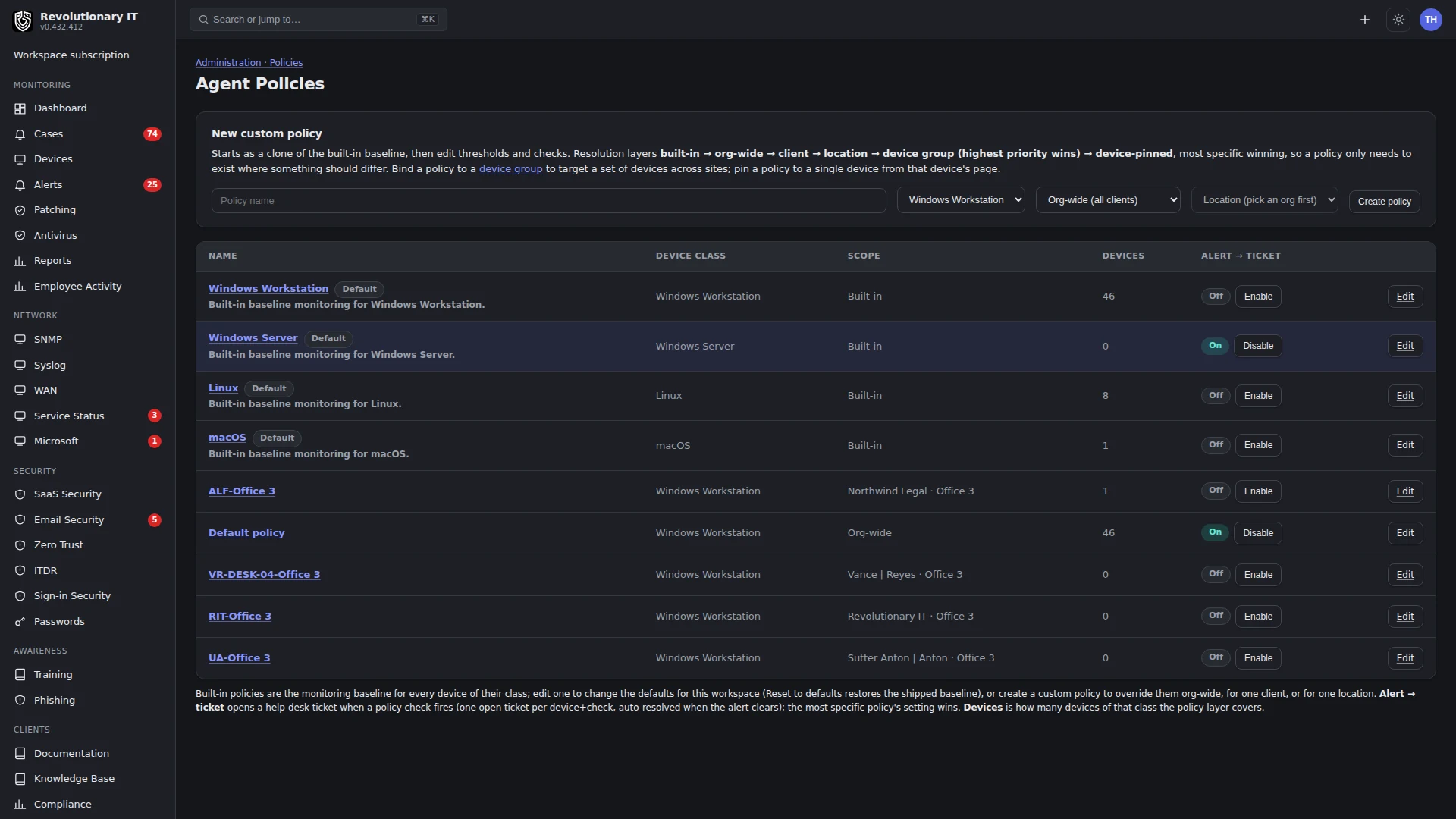
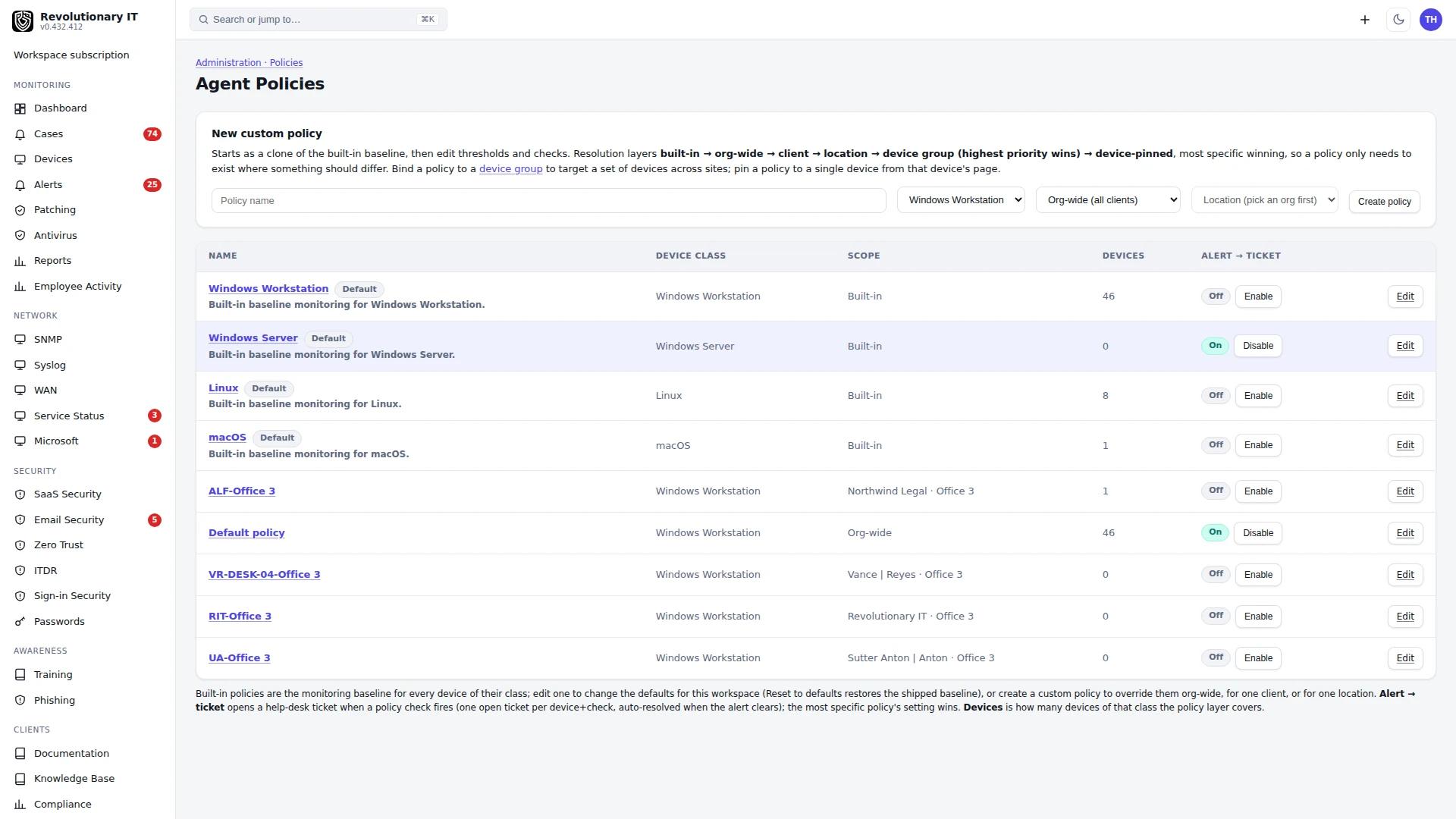
Open Administration, Policies, Agent Policies. Built-in monitoring baselines apply by device class. More specific scopes override broader settings. Read the resolution order on this page before changing a threshold; otherwise a device-specific policy may explain why an organization-wide edit has no effect.
The new custom policy starts as a clone of a built-in baseline. Type a descriptive name, choose the device class and select the intended customer. This example is preparation only: we leave the form unsaved and do not change monitoring on any endpoint.
The table shows scope, device count and alert-to-ticket state. Open an existing baseline using Edit, then inspect its checks before planning changes. For a real rollout, save only reviewed settings, verify effective policy on a pilot device, and confirm later telemetry and alert behavior.
What it does
An agent policy decides what is monitored on a device (triggers with thresholds and severities), what runs on it (scheduled automations built from library scripts and installer packages), and whether alerts open help-desk tickets. Around policies sit device groups, scripted monitors, auto-remediation rules and maintenance windows.
How it works
Layers
Every device resolves one effective set of checks by stacking layers, most specific last:
- Built-in baseline for its platform (Windows workstation, Windows server, Linux, macOS).
- Org-wide custom policy for that platform.
- Client policy (scoped to the organization).
- Location policy (a directly scoped site policy, or an explicit assignment selected with Policy overrides).
- Device-group policy.
- Pinned policy on the device itself.
A more specific layer overrides a check by type; anything it does not mention falls through to the layer below. Alert-to-ticket follows the most specific layer that sets it.
Triggers
A trigger is one check type with thresholds and metadata. The twelve types and their fields:
Device Down (SYSTEM)
offline after N minutes
CPU
above N percent, sustained for N minutes
Memory
above N percent
Disk Free Space
free space below N percent
Disk Fill Prediction
predicted full within N days (from free-space history)
Critical Events (ERRORS)
more than N critical or error events within N minutes (Windows System and Application logs)
Windows Service / Daemon
services to watch, one per line
Process
processes to watch, one per line
Network Probe
tcp or http targets, one per line, checked from the device every 5 minutes
Patching (UPDATES)
alert above N pending, security updates are critical, pending reboot is critical
Account Lockout
more than N failed sign-ins within N minutes, any lockout is critical
Antivirus Health
signatures older than N days, real-time off is critical, active threat is critical, auto-isolate on active threat at or above a Defender severity
Each trigger also carries a name, a severity (WARNING or CRITICAL), a priority, an auto-reset interval and attached automations (scripts or packages that run when the trigger fires; review their results and the later monitored condition).
Evaluation happens on the server at every check-in; the agent only collects what the policy asks for. Device Down is the one exception: a device that stops calling home cannot evaluate itself, so the alerts sweep opens it (Alerts, cases and notifications).
Automations
A policy's Automations tab executes library items on Daily, Weekly, Monthly, Once and Once immediately schedules. The policy executor does not run the Every N, On startup or On login selections; do not use those selections to schedule device actions. The current customer page has no Scheduled Tasks setup tab. Recurring policy times execute in UTC; the saved time-zone selection is not used by this executor. Policy automations target the policy's customer/location/platform scope rather than the per-device effective-check layer, so review their actual target scope separately from monitoring inheritance. One-shot schedules run once per device per item and keep running for devices that enter scope later. The policy-automations timer fires due automations every minute and records each run per device.
Step by step: adjust the defaults for a platform
- Administration > Policies > Agent Policies. The four rows marked Default are the built-in baselines.
- Press Edit on one. On the Triggers tab, press a trigger to change its thresholds or severity, or Add a trigger for one that is off (Services, Disk Fill Prediction, Process and Probe are off by default).
- Save. The change reaches every device of that platform that has no more specific policy at its next check-in. Reset to defaults restores the shipped baseline.
Step by step: create a customer or site policy
- Administration > Policies > Agent Policies > New policy: name, platform, scope (org-wide, a customer, or a customer's location).
- It starts as a clone of the built-in baseline. Edit triggers as above; add automations on the Automations tab.
- For an explicit policy assignment on the location, turn on Policy overrides and select that policy. A directly location-scoped policy is the fallback when no explicit assignment is selected.
Step by step: attach an automation
- Open the policy > Automations > Add automation.
- Name it, choose a supported schedule, enter its time using UTC for recurring policy schedules, and pick items from the library (scripts and installer packages appear together). Do not rely on the time-zone selector to convert execution times.
- Save. Disabled automations show an off pill; saving one re-enables it.
Device groups
Administration > Policies > Device Groups. A group is static (pick devices) or dynamic (rules: organization, location, platform, OS contains, tag, hostname pattern). Bind a policy to a group to apply it to every member. A device can be in several groups; bindings are applied by priority, with higher-priority bindings applied last. Check the effective checks rather than assuming the newest binding wins.
Scripted monitors
Administration > Policies > Scripted Monitors. A monitor runs a library script on a schedule on the devices in scope and opens an alert when the script exits non-zero (or matches an output pattern). Use it for anything the built-in triggers do not cover. The alerts sweep evaluates the queued results.
Auto-remediation
Administration > Policies > Auto-remediation. A rule pairs a trigger type with a library script to run when that alert opens on a device (for example Disk Free Space with the disk cleanup template). A successful script exit alone does not establish recovery: check the later monitored condition and the case resolution evidence. The Scripts page's Add + auto-fix button creates the rule for a built-in template in one click.
Maintenance windows
Administration > Policies > Maintenance Windows. A window (one-off or recurring) scoped to an organization, a location or a single device suppresses alerts, and the offline sweep skips devices inside one. Use it for patch nights and planned outages. Alerts can also be snoozed individually and flapping conditions are damped automatically.
Policy previews
Administration > Policies > Policy Previews. Before an automation or a scheduled task runs, press Preview to list the devices in your scope that it would reach. A preview never sends a command to a device and does not predict what the policy will change. Results expire after 24 hours.
Revision history, publication and rollback
Every saved change to an agent policy, a check, an automation, a remediation rule, a scheduled task, a Zero Trust policy or the patch policy is kept as a numbered revision that cannot be edited afterwards. Administration > Policies > Policy revision history lists recent revisions with their version, time, author and fingerprint; View history opens every version of one object. A deleted object keeps its history for audit.
Administration > Policies > Policy publications records a pinned set of revisions for a customer or location. To roll back, publish an earlier set again: it is recorded as a new publication, and a new publication replaces only the one for the same scope. You can also import a bundle; imports are saved as drafts and never change a live policy. A publication records which revisions are meant to apply; it does not run anything on devices.
Rollout rings
Administration > Policies > Automation Rollout Rings. A plan rolls one approved script out in rings, by default pilot (5 percent of targets), early (20 percent) and broad (75 percent), each with a soak time and a failure threshold. Each device always lands in the same ring. If failures pass the threshold, or a selected alert type is open on the targets, later rings stop until you resume. A changed script or version starts again from pilot.
You can declare a rollback script; a halted or completed run can be rolled back on the devices that completed it, and a device shows as rolled back only after its own rollback command reports success. A plan with no rings (an empty list) only reports which devices would be targeted and whether they are inside a maintenance window, and sends nothing.
Each window shows its schedule, scope and status. While it is active a window can allow patching, allow automation and suppress alerts for the devices in scope, so planned work does not page anyone.
Alert to ticket
Each policy has an Alert to ticket toggle on the list. When on, an alert opens a help-desk ticket (one open ticket per device and check, auto-resolved when the alert clears). The most specific policy's setting wins.
Verification
- Device page > Settings > Monitoring policy lists the effective checks and their thresholds with the layer each came from.
- Force a condition (stop a watched service) and watch Monitoring > Alerts.
Troubleshooting
- A trigger does not fire: confirm it is enabled in the effective policy on the device page; check the device is not inside a maintenance window; check the check-in is arriving.
- An automation never ran: confirm the item exists in the correct library and is enabled; if no scheduled runs appear, ask support to check the workspace scheduler; see Administration > Devices > Command Runs for the queued command.