Organizations, locations, end users and contacts
Video guide: Find customer organizations and site assignment
Recorded October 22, 2026 in the fictional Summit Managed IT staging workspace, App 0.432.1. The deployed demo can differ from the current product; use the written guide for current behavior. No organization creation, location assignment, invite or customer-isolation acceptance test.
Full narration captions are included in the video. Open video full screen · Download subtitles · Download transcript
Video transcript
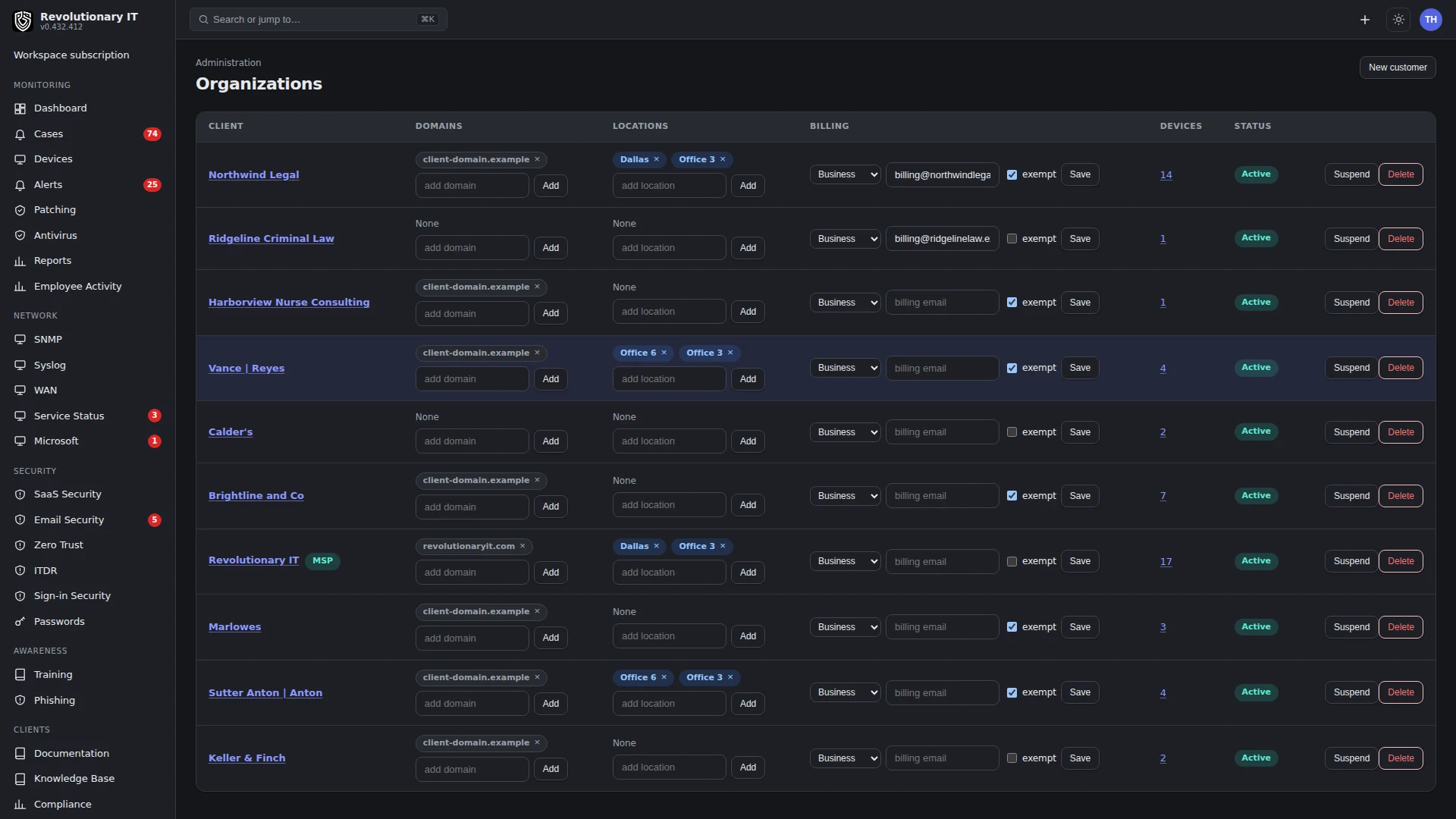
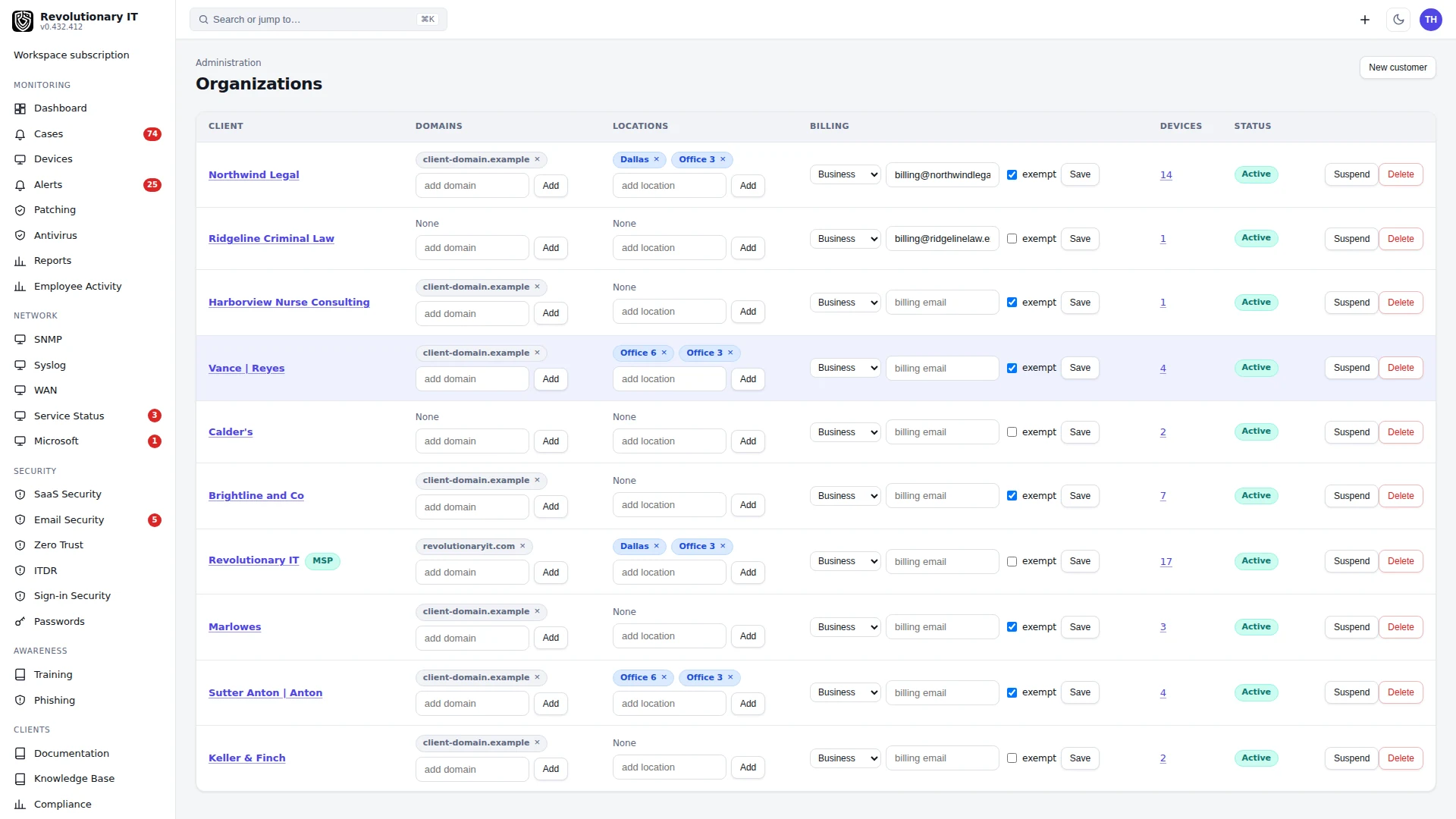
Open Administration, Organizations. Each organization is a customer inside this MSP workspace. Summit Managed IT and its example customers are fictional. Review customer identity and locations before enrolling devices or changing access.
Open Devices to see how customer and location scope connects to inventory. Check the selected customer and the device row before assigning policy or requesting an action. A workspace is not the same boundary as an individual customer organization.
Use the organization guide to prepare locations, contacts and authorized user access. Verify a pilot device and user under the intended customer and test that another customer cannot see them. No organization or permission was created or changed in this recording.
What it does
Organizations are the MSP's customers. Customer records are scoped to an organization: devices, alerts, tickets, documentation, assets, billing, integrations. Locations are the customer's sites (an office, a branch). End users are the people at the customer who may sign in to the client portal; contacts are people the ticket system knows (a requester by email) who do not necessarily have a login.
How it works
- An organization row carries the customer's name, type, contact details, invoice prefix, billing address and payment method, and the identifiers every integration hangs off (its Microsoft 365 connection, Google Workspace connection, EDR sites, SNMP nodes).
- A location belongs to one organization. Devices can be assigned to a location. Policies can be scoped to a location, and a location can carry its own policy overrides and patch source.
- End users have a client role (CLIENT_ADMIN, CLIENT_USER or CLIENT_GUEST) and, for customer access, an assigned organization. They sign in on the workspace host and land in the client portal. A configured Microsoft 365 or Google Workspace connection can import users; review the import scope before enabling it.
- Contacts are requester records. Every mailbox sender gets one automatically; a contact can be promoted to a guest login with one click.
Step by step: create a customer
- Administration > Organizations, press New customer.
- Fill in Company name (required), Type, Billing contact, Billing email, Phone, address and Invoice prefix (used on invoice numbers, for example
ACME-1042). Email domain (optional) trusts inbound ticket email from that domain; leave it blank unless you intend that behavior. - Choose Create customer. You return to the organizations list; open the customer there to reach its General tab.
Step by step: add locations
- Org page > Locations tab > Add location. Name and address.
- Press Edit on a location to set:
- Settings: name, address, description.
- Patching: the update source (organization default, device default, Microsoft default, or a custom WSUS server URL).
- Policies: turn on Policy overrides and pick the agent policy per platform and store an MDM policy selection per mobile platform for this site. Those stored MDM selections are not consumed by the current enrollment/push paths; configure MDM enrollment and device policies separately (MDM / EMM).
- Assign devices in one go: Edit > Devices tab lists every device of the customer with its current location and status. Search, filter (no location, at this location, at another location), Select shown or tick rows, watch the running count of adds and removes, then Apply. A ticked device moves here; unticking a device that is here sends it to no location. Single devices can also be moved on the device page > Settings tab. The Locations table shows the device count per site.
Step by step: end users
- Org page > End Users tab (or Administration > Accounts > End Users for all customers).
- Add end user: name, email, role.
- CLIENT_ADMIN sees every portal tab the MSP allows and can manage their own organization's documentation.
- CLIENT_USER sees their own tickets and the tabs the End User Roles matrix allows.
- CLIENT_GUEST is a contact given a login. Ticket access is limited to their own tickets; other portal tabs follow the configured visibility and resource permissions, and remote control requires explicit device grants.
- Allow remote control is a separate permission. With it enabled, CLIENT_ADMIN can control every device in their customer organization; the individual device-grant list does not narrow that role. CLIENT_USER and CLIENT_GUEST require explicit device grants. Select the role and remote permission accordingly.
- The platform requests a welcome email with a temporary password through the workspace mailbox, with platform-relay fallback where available. A successful request does not prove inbox delivery. The user must change the temporary password and complete the required two-factor setup before using the portal.
- Resend welcome is available while the account still carries a temporary password.
Step by step: contacts
- Administration > Accounts > Contacts lists every contact with search and organization filter.
- Add, edit or delete contacts. Set up as guest turns a contact into a CLIENT_GUEST account (optionally with remote access and device grants) and emails the welcome.
Organization tabs at a glance
- General: identity, contact, invoice prefix, domain.
- Devices: the customer's managed computers.
- Assets: manual assets (switches, phones, printers, NVRs, cameras, NAS) plus managed computers and SNMP nodes as live rows; export CSV, Excel, PDF.
- Virtualization: the customer's VMware ESXi, VMware vCenter and Microsoft Hyper-V hosts, each with its credential, monitor delegate, last connection and status; Add host adds one, Remove stops monitoring it.
- Locations: sites and their overrides.
- Credentials & API: local admin credentials, provider connections under SaaS, SNMP relays, credentials and nodes, and WAN monitors.
- Revolutionary Remote: remote-control settings for the customer.
- End Users: portal accounts.
- Microsoft tenant views and service health are on Network > Microsoft; connection setup is under Credentials & API > SaaS.
- Patching: the customer's patch view.
- Billing: billing contact and address, invoice prefix, payment method, subscription and running charges.
Verification
- The organization appears in every org picker (Devices filter, Alerts filter, Compliance, Microsoft).
- A new end user can sign in on the workspace host and sees the portal.
Troubleshooting
- Welcome email never arrived: check Administration > Logs > System Email. Check the reported send outcome and the recipient address. If sending fails, an administrator may receive a temporary-credential handoff in the workspace; share it through an approved private channel, never in a support screenshot.
- A person appears twice: a contact and an end user with the same email are merged in ticket pickers by email; review linked tickets before deleting an unneeded contact.