Scripts, scheduled tasks and installer packages
Video guide: Prepare a harmless script and find automation controls
Recorded October 22, 2026 in the fictional Summit Managed IT staging workspace, App 0.432.1. The deployed demo can differ from the current product; use the written guide for current behavior. Unsaved harmless script and navigation only; no script execution or software deployment.
Full narration captions are included in the video. Open video full screen · Download subtitles · Download transcript
Video transcript
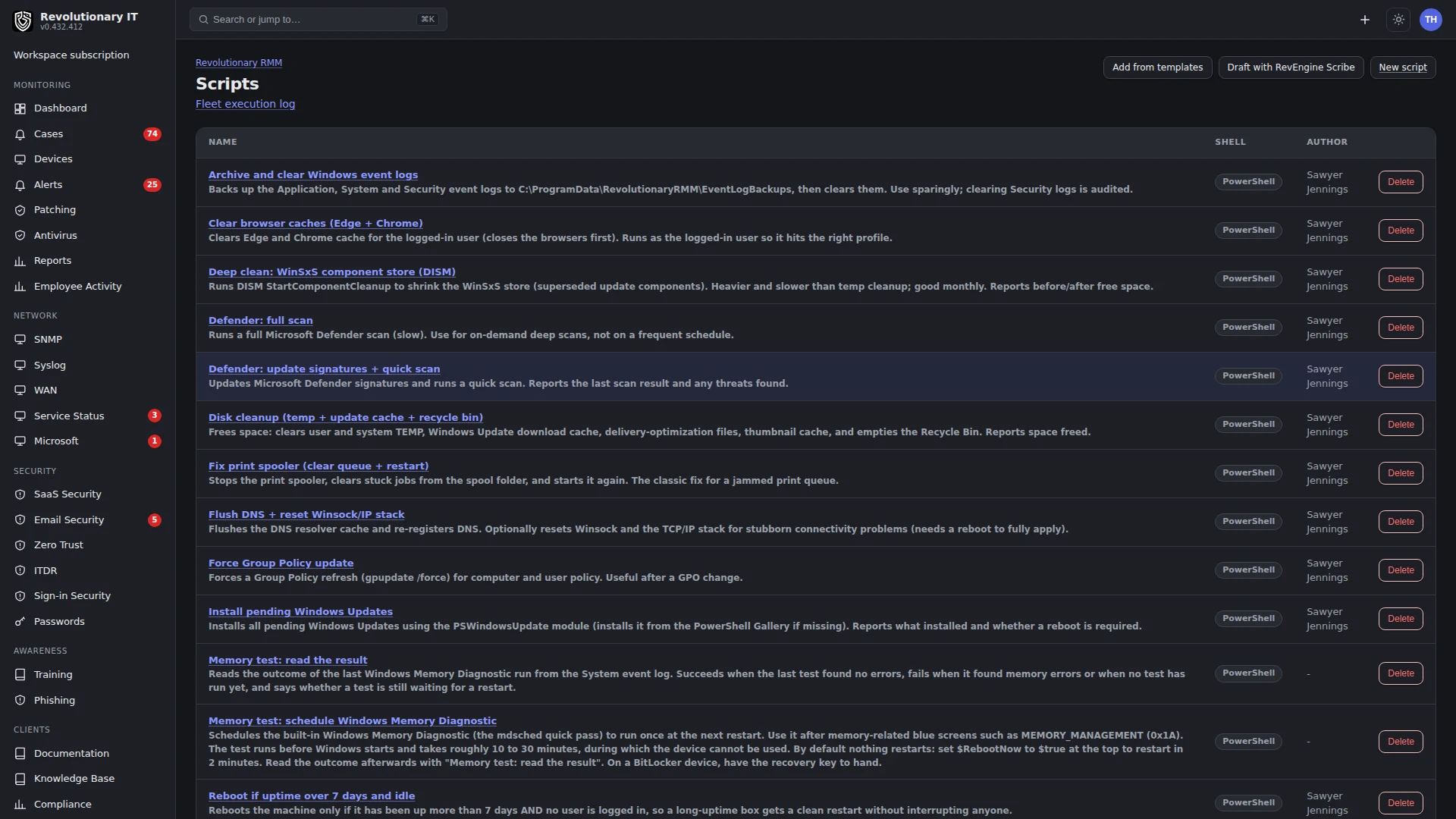
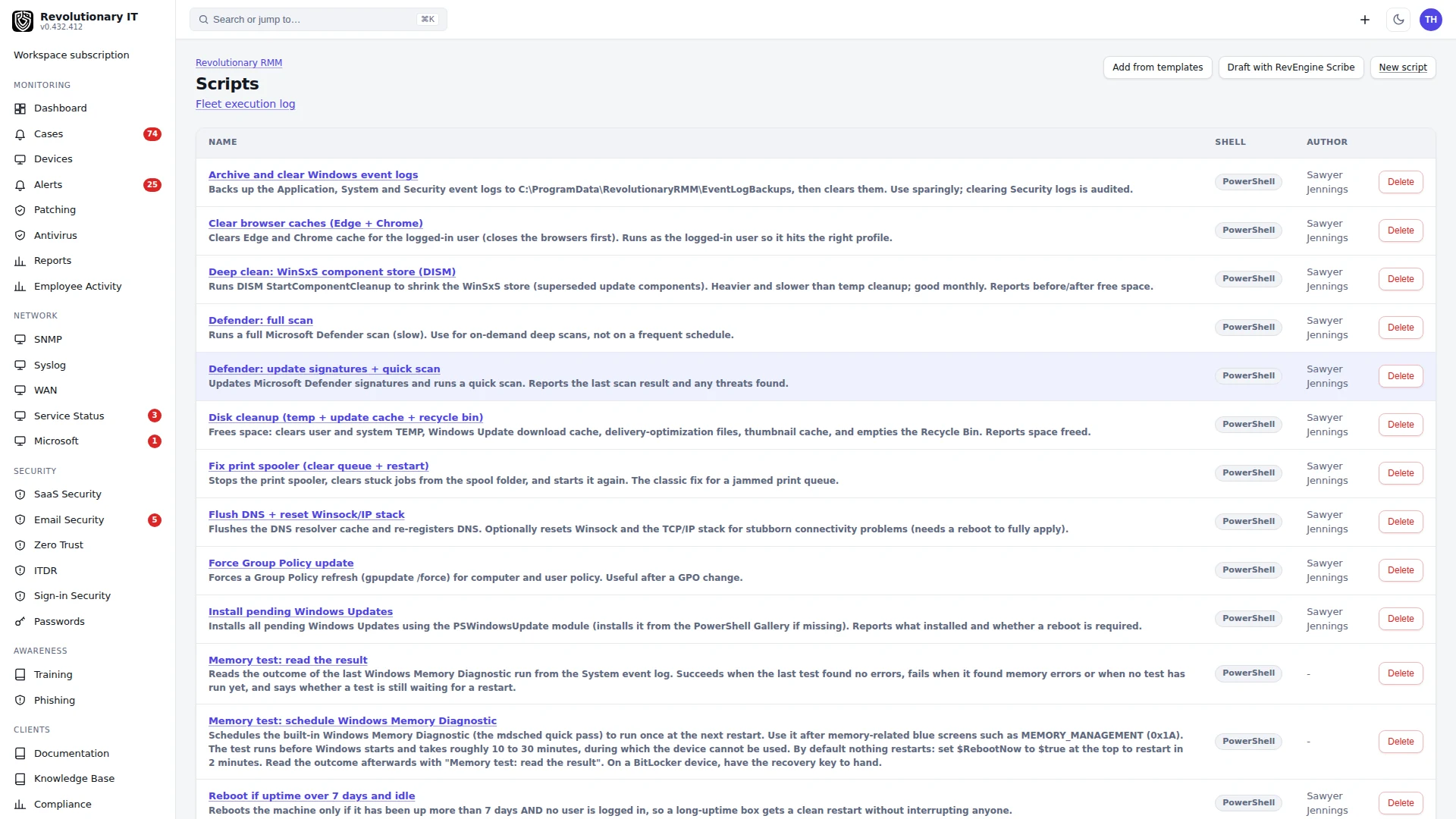
Open Administration, Library, Scripts. A script library entry, a scheduled automation and an endpoint execution are different records. This fictional workspace has no scripts yet. Open New script to inspect exactly what a technician must review before saving.
Name this example Northwind training greeting. Keep PowerShell as the shell and inspect the System or logged-on-user account choice. Type a command that only writes a greeting. We leave it unsaved; creating a library entry would still not prove it ran on a device.
Return to Scripts and open the built-in templates. Review each script and its execution account before adding it. The Automation library separately holds installer packages and silent arguments. On a real pilot, inspect the endpoint job result and later health evidence before reporting a successful fix.
What it does
The Library holds PowerShell and shell scripts, a catalog of built-in maintenance and remediation templates, uploaded installer packages (.msi and .exe) for silent deployment, and downloads (the controller, agent installers). Use policy automations for the schedules supported by the current UI. Command Runs is the history of commands sent to agents.
How it works
- Scripts belong to the workspace, carry a shell (PowerShell for Windows, bash for Linux and macOS), an account (System, or Logged on user which runs elevated in the user's session on Windows), a description and a danger flag. The end-user RevAssist can propose a library script in its chat and runs it only after the user approves it; the Library, automation, scheduled-task and other configured workflows run scripts without that step.
- Every run is a signed SHELL (or SHELL_USER) command; the agent captures stdout, stderr and the exit code; output shows on the device's Activities tab and under Administration > Devices > Command Runs. Shell commands are capped at 15 minutes.
- Review template bodies before use, especially changes to security settings such as Smart App Control. Templates: Administration > Library > Scripts > Add from templates offers 21 built-in Windows templates, including disk cleanup, print spooler fix, Windows Update reset and install, Defender scans, DNS flush, SFC and DISM, reboot if idle, Outlook search reindexing and memory diagnostics. Templates are deduplicated by name when added. Add + auto-fix is offered only for templates linked to an admitted RevEngine remedy catalog entry; it enables that catalog remedy. It does not turn an arbitrary library script into a standing remedy.
- Installer packages: Administration > Library > Automation stores uploaded
.msiand.exefiles with their silent arguments. Deployment is a signed FILE_PUSH followed by a SHELL install, ordered by the agent's one-command-at-a-time rule; each job has a derived status on the device's Software tab. Packages are deployed by attaching them to a policy automation (Policies and automations), which is how they reach an organization or location. - Scheduled-task processing exists for stored tasks, but the current organization page exposes no Scheduled Tasks tab or task-creation controls. Do not follow older instructions to create or run a task from that page. Policy automation schedules are described in Policies and automations.
- Uninstall queue: the device's Software tab lets a technician tick programs and uninstall them one after another without waiting between; jobs are worked serially because the agent runs one command at a time. This queue is held in the current browser tab; closing or refreshing it loses items that have not yet been dispatched.
The same library serves Windows and Unix: a PowerShell script runs on Windows devices and a shell script on macOS and Linux. Scripts run as the system account; on Windows devices with agent 0.4.57 or later they can instead run as the logged on user for per-user settings. The Fleet execution log on the Scripts page shows every run across the fleet.
Step by step: add a script
- Administration > Library > Scripts > New script: name, shell, account, description, the script body. Use exit codes consistently and log enough to inspect the result. Exit 0 reports script completion; confirm the intended device state separately.
- Save. To run it on one device, open the device page > Tools > Scripts and choose Run on this device. For scheduled execution, attach it to a policy automation with a supported schedule.
Step by step: install a template and its auto-fix
- Administration > Library > Scripts > Add from templates.
- Choose Add beside a template, or Add all not yet added. For a template that offers Add + auto-fix, that button adds the script and enables its admitted catalog remedy.
Step by step: upload and deploy an installer package
- Administration > Library > Automation > Upload: a Windows installer file (up to 500 MB), name, version, silent arguments (
/qnfor MSI, the vendor's switch for EXE). - Administration > Policies > Agent Policies > the policy for the customer or site > Automations > Add > pick the package, schedule Run Once Immediately (per device).
- Watch the device's Software tab > Install jobs for status.
Customer scheduled-task availability
The current organization page has no Scheduled Tasks tab, New task or Run now control. Use policy automations for supported daily, weekly, monthly or one-shot schedules. Their On login, On startup and Every N selections do not execute; they are not a substitute for native task setup. See Policies and automations before scheduling work.
Command Runs
Administration > Devices > Command Runs lists every command with time, device, customer, type, who sent it, status, exit code and duration. Use it to confirm a deploy, a reboot, an isolation or a wipe actually reached the device and what it returned.
A command type that a device's agent build cannot run is recorded as its own outcome, unsupported, with a reserved exit code: it is never shown as success and never mixed in with commands the device attempted and failed. Nothing ran on the device, and the command run and any case action that waited on it say so. Older agents that only print the unsupported text are read the same way.
Community Scripts: import scripts from GitHub
Administration > Library > Scripts > Community opens Community Scripts. Any staff role can see imported scripts and report a problem. Adding sources, importing and updating need an Owner or Admin.
- Under Sources, Add a source: the GitHub owner and repository of a public repository, with an optional branch or tag, folder and label.
- Browse the source and choose Import as draft for a file. The import records the commit and the file's SHA-256.
- The imported script is a draft. It cannot run until its scan findings are reviewed and a second Owner or Admin approves it.
- Check for update compares an imported script with its upstream file. Inspect the changes, then choose Apply update as a new draft. The new draft needs the same second approval.
- Report a problem records your note in this workspace only. To tell the authors, open an issue on GitHub from the link shown; it fills in only the file, the commit and the SHA-256, and you write the problem there yourself.
- Prepare file builds a link that adds one of your scripts to a source's repository through your own GitHub session. A script too long for a link must be downloaded and added on GitHub.
- Removing a source keeps the scripts already imported from it in the library with their provenance.
Bulk remote shell: one command on several devices
Devices > Bulk shell sends one typed command to several devices at once and shows each device's result.
- Under Send to, choose Devices I pick, All devices of a customer, All devices of a location or All devices I can reach. Narrow it with the server or workstation filter.
- Type the command and choose Run as: System account, or Logged-in user.
- For a customer, location or all-devices target, choose Check devices. The preview shows how many devices and customers the run reaches. Type that number of devices to confirm, then send.
- Read each device's Status, Exit code and Output in the result.
- Logged-in user needs a Windows device with agent 0.4.57 or later and someone logged in. Any other device is shown with the reason and nothing runs there.
- One run has a device limit. A larger target is refused; narrow it with a filter, a customer or a location.
- A device that did not pick the command up in time did not run it and will not run it later. A device that picked it up but returned no result may have run it: check the device before you send it again.
Verification
- A script run shows its output on the device's Activities tab within a minute of the device polling.
- A package attached to an automation appears as an install job and the program then appears in the Software inventory.
Troubleshooting
- Run as Logged on user returns unsupported: the agent predates 0.4.57; update it. Nobody logged in also fails, by design.
- PowerShell parse errors: never join
try {}andcatch {}with a semicolon; the platform cannot lint PowerShell, test on a device. - Upload rejected over 10 MB: the upload routes stream the body; report the file size and time to support so the workspace upload limit can be checked. Do not include the package or its credentials in a public report.