Ticketing
Video guide: Locate ticket work and distinguish drafts from sent replies
Recorded October 22, 2026 in the fictional Summit Managed IT staging workspace, App 0.432.1. The deployed demo can differ from the current product; use the written guide for current behavior. No external ticket intake, reply/send, time billing or verified resolution.
Full narration captions are included in the video. Open video full screen · Download subtitles · Download transcript
Video transcript
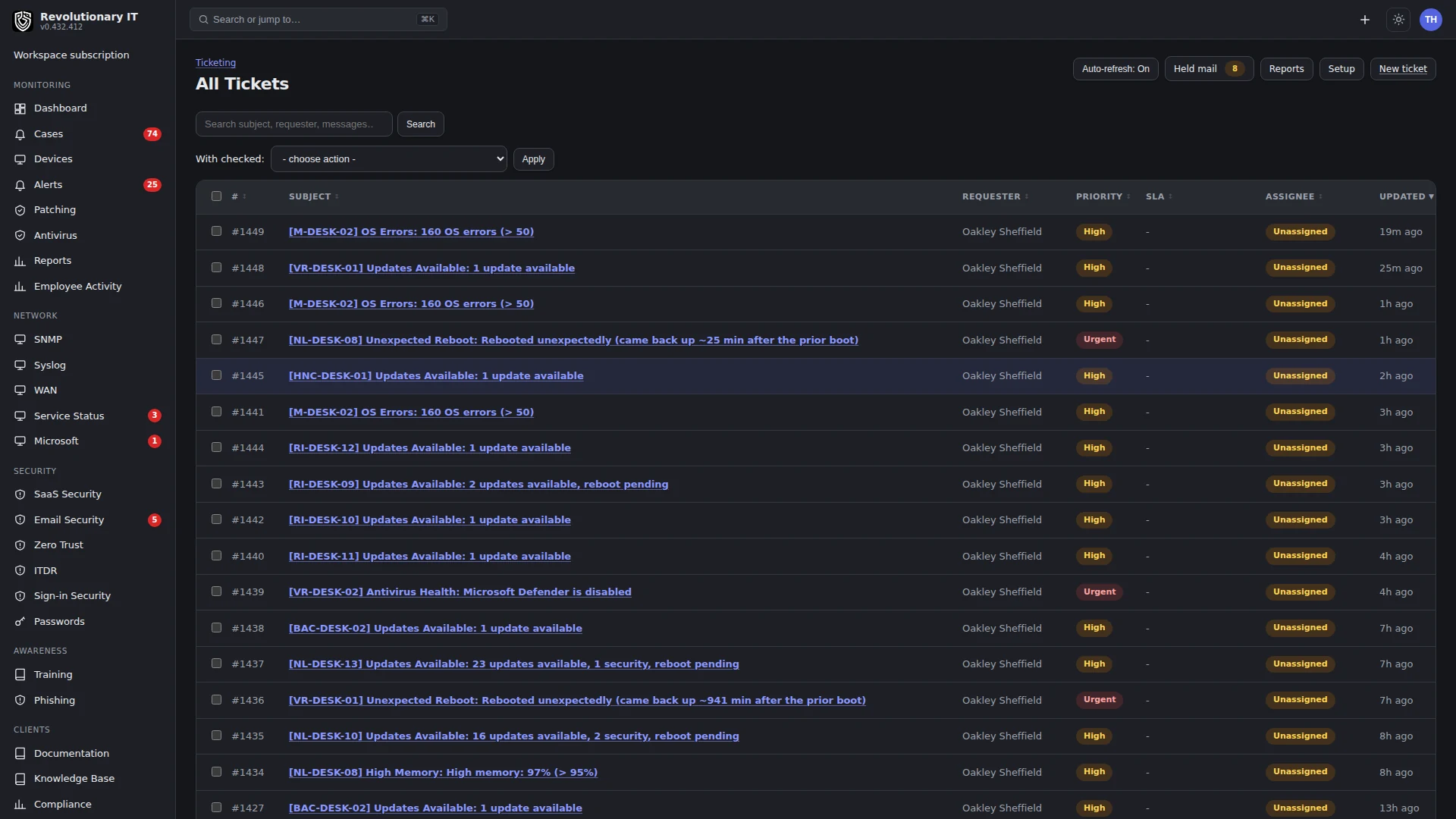
Open Service Desk, Ticketing. Start with the customer, queue and current ticket state. The fictional training workspace is for navigation only; we do not contact a customer or send a reply.
Open Cases to distinguish an operational investigation from a service-desk conversation. A drafted response, an assigned ticket and a verified resolution are different states. Review the evidence behind a proposed fix and keep internal notes separate from public replies.
Use the written guide to configure the intended intake channels, permissions and time tracking. Verify an authorized test message through intake, reply and delivery, then confirm the endpoint or customer result before closing. An AI suggestion or a local sent label alone is not resolution.
What it does
The service desk: tickets arrive by email, text message, the client portal, the agent tray, alerts and technicians, are worked on boards with replies, notes, inline images and attachments, tracked for time, escalated under SLAs, surveyed for satisfaction, and billed. Cases (Alerts, cases and notifications) and tickets link both ways.
How it works
- Mailbox: one support mailbox per workspace (Microsoft 365 through Graph, or Google Workspace through IMAP and SMTP) is polled every minute by the ticket-mail timer. Every message becomes a reply on the matching ticket or a new ticket; matching is by the
[Ticket #N]tag in the subject and, for Microsoft 365, by the Exchange conversation id, so replies without the tag still thread. Outbound replies go through the same mailbox so threading holds. Inbound HTML is sanitized and shown with the quoted history cut; images pasted into a reply travel as inline images. - Intake control: allow list and block list on senders and domains; held mail lands on the Pending board for a technician to accept or discard.
- Text messages: a voip.ms, Twilio or Telnyx number turns inbound texts into tickets (threaded to the open ticket for that phone within a window) and sends replies on SMS tickets back as texts.
- Requesters: every sender becomes a contact; the org is derived from the sender's email domain or picked by the technician; the Details panel scopes end user, location, device and assignee to the selected organization.
- Boards: Unassigned, All, Mine, Open, Resolved, Deleted, Pending. Bulk actions, merge (carries everything from the merged ticket, forward only), tags, custom fields, watchers and CC.
- Time: a per-ticket start and stop timer, manual entries, and remote sessions applied to the ticket (auto-attributed when launched from the ticket or when the device has exactly one open ticket). Resolving requires logged work unless the ticket was merged or closed by automation.
- Notifications: rules per event (new ticket, reply, assignment, resolution) and recipient (requester, end user, assignee, group); receipts use the editable email templates (Email, branding and workspace settings). SLA policies define response and resolution targets per priority with breach warnings; support hours bound the clock; the ticket-sla timer evaluates every 15 minutes.
- Forms: request forms with fields the portal shows on New ticket. CSAT: a survey link on resolution with results per technician.
- Alert to ticket: a policy flag opens one ticket per device and check, auto-resolved when the alert clears; any alert can also be turned into a ticket by hand.
- Tray: Request support on the device's tray files a ticket with subject, description, device context and, where supported and selected in the tray form, a screenshot. Check the attachment before sharing it; display capture depends on OS permissions and the running tray build.
Step by step: connect the support mailbox
- Administration > Apps > Systems > Ticketing > Email: choose Microsoft 365 (tenant id, client id, secret of an app with Mail.ReadWrite and Mail.Send on the mailbox, and the mailbox address) or Google Workspace (the support address and an app password; IMAP must be turned on). Other IMAP and SMTP servers are not supported. Test, save.
- Send a test email to the mailbox; check for it after the next mailbox poll. Intake rules may hold it on Pending instead of creating an Unassigned ticket.
Step by step: intake rules
- Ticketing > Allow list and Block list: add addresses or domains.
- Notification rules: the seed button installs sensible defaults (new ticket receipt to the requester, assignment to the assignee, resolution to the requester); adjust.
- Support hours and SLA: define business hours and holidays; add an SLA policy with response and resolution targets per priority.
Step by step: text messaging
Administration > Apps > Text Messaging: pick the provider, enter its credentials and the number, copy the inbound webhook URL (with its key) into the provider's SMS settings, send a test.
Day to day
- Ticket page: reply (email or text), internal note, attachments, Details (organization, location, end user, device, assignee, priority, tags, custom fields, CC), time card with timer and remote sessions, linked case, KB suggestions, Ask AI.
- New ticket: from the Add menu with organization, location, end user, device and assignee pickers.
- Pending board: accept held mail into tickets or discard it.
- Knowledge base: Clients > Knowledge Base holds articles that can be attached to tickets and shown in the portal.
Parts on a ticket
When time tracking is on, staff can add parts from a ticket's Time panel: a part description, quantity, unit price, cost and whether it is taxable. The ticket must have an organization before parts can be billed.
- Each part shows needs approval until an Owner or Admin approves it for billing.
- Mark a part as covered by an agreement and it is never invoiced.
- A part already on an invoice is locked.
Verification
- Inbound email becomes a ticket; the requester receives the receipt; a reply from the ticket threads into the same email conversation.
Troubleshooting
- Duplicate tickets from replies: the reply lost the subject tag and the mailbox is IMAP (no conversation id); merge the duplicate.
- Receipt not sent: no active notification rule lists End user for Any new ticket, or the mailbox cannot send as the configured address; Administration > Logs > System Email shows the attempt.
- SMS not arriving: the provider is not calling the webhook URL, or the key in the URL is stale after a rotation.